
Necessary tools
In order to be able to install firmware, the following tools are required:
- Personal computer with MS Windows
- Network cable to connect the Valuejet wit the pc
- The latest MSA-tool (Mutoh Service Assistance) or MSM-tool (Mutoh Status Monitor)
Detailed instructions how to install the firmware, are described in the maintenance manual.
The latest current firmware can be downloaded below this article.
Current version - 1.13
Bugfix
- While "[*] Check Clr. -> E"is displayed on the panel and the cartridge is removed and reinsterted, none of the following didn't work:
- Media feed
- Nozzle check print
- Print head cleaning
This is issue has been fixed.
Version history
1.13
Changed item
- Implementation of a new feature to handle smart-chip related issues, with the new S/C Recovery procedure.
For more information check the following article: TIB818 - Smart Chip Recovery - The "Ink End" detection, software-handling and ink-consumption have been improved.
- When receiving a remote command for nozzle check during media detection, the display shows that analysis is in progress, but nothing responds. This has been fixed
- When printing the nozzle check remotely the time and date weren't printed correctly. This has been fixed
- E074 error occurred when the carriage was moved manually. This could occur when the printer is in sleep mode and cartridges were replaced (removed/inserted). This has been fixed.
- Added support for UH21 ink cartridges
1.12
Changed item
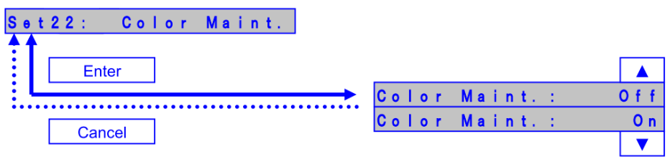
Color maintenance menu has been added in user mode (only when using US11 ink)
Color Maint. : On
The printer performs color ink maintenance when waking up after 72 hours of sleep mode to ensure smooth startup after longer sleep times.
Color Maint. : Off
The printer does not perform the color ink maintenance
1.09A
Changed item
Auto Cleaning "Accum. Print" has been added in the User Setup menu.
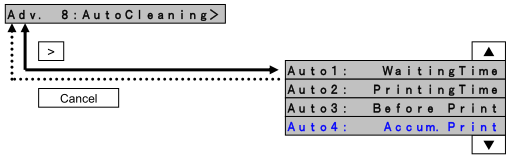
When Accum. Print is enabled on 2h, the autocleaning cycle will act as follows:

The purpose of "Accum. Print" in the AutoCleaning menu is to improve nozzle stability during production.
1.09
Changed item
Changed the lifetime counting method for suction pump
=> The lifetime of suction pump is changed from 285 hours to 17,100 counts (equivalent to 5 hours)
Bug correction
Fix the bug that it takes time to complete a print job if using Mac OS High Sierra.
Remark
When you install this F/W, please use MSA ver. 4.0.4.0 or higher
1.08
New Items
- Changed UV lamp operation during printing
UV irradiation area is changed from Media width to Print width.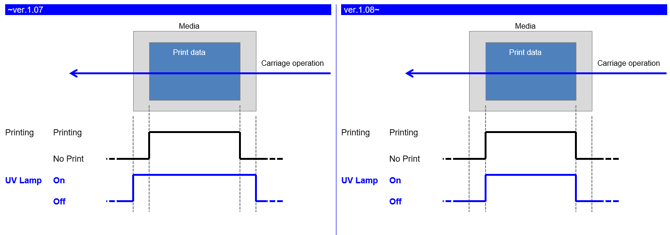
-
Print the printer information on the nozzle check pattern [User mode]
Printer info.: Print time, S/N, F/W Version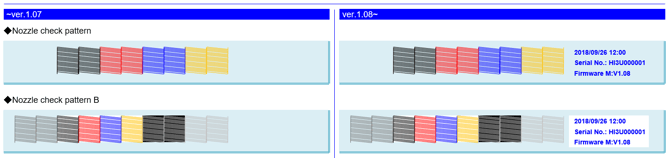
-
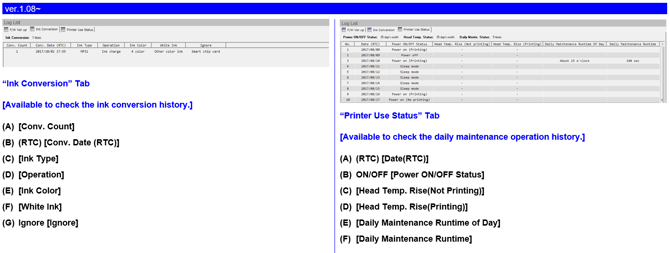
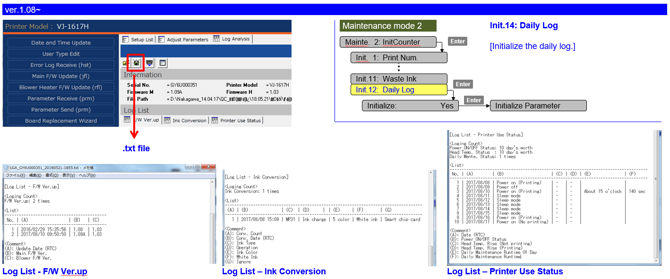
Added the function to save the history of daily maintenance log
The history can be checked with MSA ver.4.1.7.0 or later.
(Cannot be checked on the operation panel)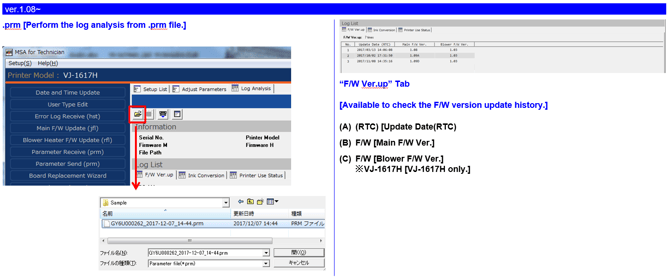
-
Added skip function to the Media setting menu [User mode]
Some steps can be skipped if the media size is set to maximum or minimum.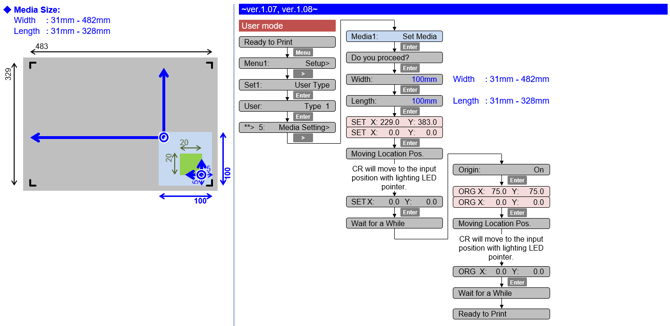
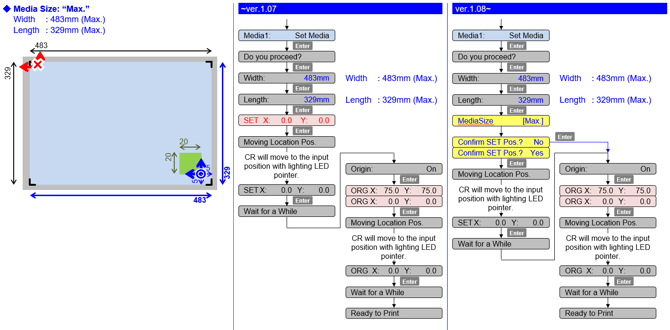
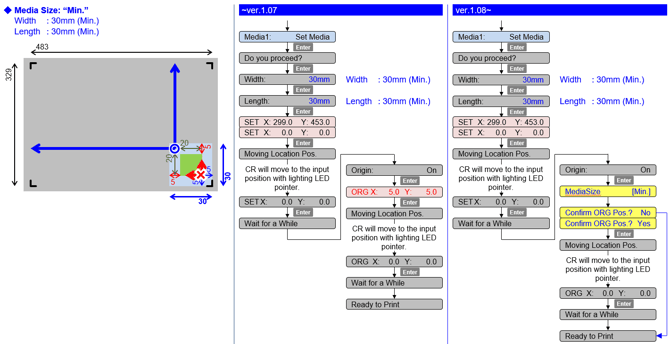
Bug corrections
- Corrected the F/W bug that the parameter in MSA cannot be sent to a printer
If the communication between MSA and the main board is cut off, MSA will automatically retry to sent the parameter.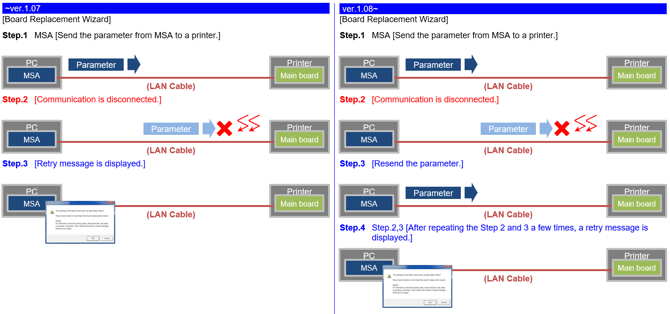
1.07
1 New Items
- Changed the frequenty of the "lifetime" alert message
Persistent lifetime alert messages can now be deleted with the "cancel" key (User Mode)
7 days after pressing the "cancel" key, the message will reappear and you just have to hit the "cancel" button again - Parameter update after initial ink-charge
Previously the printer always needed a reboot after ink-charge, in order to properly store the charge-flag in the parameters. When an error occurred after sleep mode, the charge-flag was reset and inks needed to be recharged again if the printer was not properly restarted. From this version, parameters are now properly stored after initial charge without the necessity to reboot. - Added the alert buzzer menu
If the alert buzzer is set to off, the beep sound will turn off automatically after several beeps - Initial start-up sequence has been changed
When starting a new machine, during the start-up sequence, the firmware will now ask confirmation if the wiper has been installed -
Added extra menu items in Diagnostics
Data Width, Data Length and Table Height have been added in the menu.
Release date: 8 november 2017
1.06
1 New Items
- Additional *WL commands added
- wl22: white/varnish underlay
- wl23: white/varnish overlay
- wl24: 3 layer
- Added the obstacle detection menu in setup menu:
- print cancel: if sensor detects an obstacle, the printing will stop
- confirm: if the sensor detects an obstacle, the printing will pause and the user has a choice:
- print continue: printing will resume
- print cancel: printing will stop
2 Changed items
- Modified *IP command: added new dot parameters to allow different drop masses for cmyk vs. white/varnish
3 Diagnostics mode
- Added the accumulated total printed area into the history menu
- Added the reboot message after the initial ink charge menu flow
- Added the menu to show the number of pages printed in each ink type (luh1/us11)
- Changed the circulation pump suction time in endurance menu: driving time of the circulation pump: 3sec => 10sec
- Changed the send pitch submenu
- Added the option to check each vacuum fan
- Added the margin menu in the adjustment menu to adjust top and side margins
Release date: 16 august 2017
1.05
New items
- Added the daily maintenance function [User mode]. When entering the sleep mode or powering off the printer, the menu automatically shifts to the Daily Maintenance menu.
- Display the message to prompt users to perform the daily maintenance [User mode]. When the total printing time reaches 12 hours, the message appears to prompt users to perform the daily maintenance.
Changed items
- Changed the CR maintenance operation [User mode]. Carriage will move to the centre of the printer during the CR maintenance.
- Changed the maintenance menu display order [User mode]. The ResetWasteInk menu was moved to the second option to arrow easy access.
Release date: 27 january 2017
1.04
Diagnostics mode
- New ink conversion (ink type / ink color) log menu
- New head replacement menu: the head lifetime counter will automatically be reset after updating the head-rank
-
Change the maintenance menu configuration:
-
Added shot counter menu
-
Moved "Fire A" to "Fire H" and "T.Fire A" to "T.Fire H" to shot counter menu
-
-
Added CR maintenance log menu: monitor maintenance cycle and its interval
Release date: 11 january 2016
1.03
New Items
- *** new *PQ command added : custom 19 PQ235; 360x1080dpi; 6pass; bidir; 320cps; vsd3
- Optimization of circulation pump lifetime
- Added CCW unidirectional printing (*dn3) for improved curing behaviour: Ink is jetted when print head moves from left to right
- Modified specs of *uc command, if all parameters in *UC command are set to 0, the initial value for UV control will be applied
Release date: 2 july 2015
1.02
New Items
- Modified pattern of nozzle check B for improved visibility
- “Show edges” menu added to user type settings: since vj426uf has no media detection, an operator sometimes wants to make sure that no ink will be jetted outside the media borders, i.e. on the printer's vacuum table. Therefor, the four corners of the rectangular print area can be shown via the red led situated on the carriage.
- Settings: off / step / auto
- Off: no user interaction needed, when receiving print data, start printing
- Step: most user interactive setting, each of the 4 corners must be confirmed. The carriage stops at every corner and waits for confirmation while blinking 3 times at 1Hz rate.
The confirmation is done by pressing “enter” button. After corner confirmation is done, led turns off and carriage caps in. Finally, a “start printing” message needs confirmation. - Auto: less user interactive setting, 4 corners are shown via led but need no user confirmation. Only “start printing” message needs confirmation.
- Settings: off / step / auto
Changed Items
- The “palette” job can be printed in “fast” print mode; fast = 720x1080 dpi, unidir, 320 cps
- The uv-led controlled curing method “no uv-led irradiation” is removed
- User mode: “UV scan” submenu added to the maintenance menu
- Uv scan 1: start --> curing area is the area specified in user type / media setting; illuminance 100%
- Uv scan 2: scans --> specify the number of uv scans per inch in media feed direction
Uv scans: 2 / 4 (default) / 8 / 16 - Uv scan 3: post cure
settings: on / off - More accurate representation of ink consumption on the printer's panel
Bug fixes
- When ink end occurred while in sleep mode, a buzzer signal becomes active. This buzzer signal could not be stopped, this has been solved.
Diagnostics mode
- “Vacuum fan” menu added: when printer is turned on, vacuum fan control is always set to low. Settings: off / low (default) / medium / medium-hi / high
- Diagnostic mode: “power off” submenu added to “record” menu
- Off count: number of times printer has been powered off
- Interval 1: number of [0 - 5 min] time intervals between power off and on
- Interval 2: number of [5min - 1 hour] time intervals between power off and on
- Interval 3: number of [1 hour - 24 hour] time intervals between power off and on
- Interval 4: number of [more than 24 hour] time intervals between power off and on
| Attachments (1) |