
Necessary tools
In order to be able to install this software, the following are required:
- Personal computer with MS Windows 10
- USB 3.0 connection from printer to PC
How to update the Controller Software
The controller software is containing all the printer settings. When you overwrite the software with the installer, the previous settings will be reset. If you want to maintain the settings, follow the steps below to proceed.
| NOTE There is no need to start the printer. Just make sure the printer and the software are both shut-down before installing the new version. |
Before the installation: back-up the settings
- Start the software
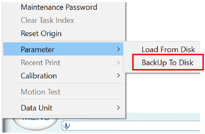
- Select "MENU" >> "Parameter" >> "Back up to DISK" to save the settings to a file
- Close the software
- Rename the installation folder of the software
e.g. "c:\Mutoh PJ-2508UF" >> "c:\Mutoh PJ-2508UF (old version)"
- New version installation
- Install the new version of the software
Since the original installation folder is renamed, you can install it in the default folder
e.g. "c:\Mutoh PJ-2508UF"
- Install the new version of the software
- After installation: restore the settings
- Copy all the files inside the following subfolder "c:\Mutoh PJ-2508UF (old version)\Medium" to the same subfolder of the latest installation: "c:\Mutoh PJ-2508UF\Medium"
- Copy the "ricoh_phcfg.rhdat" file in the folder "c:\Mutoh PJ-2508UF (old version)" to the latest installation:
"c:\Mutoh PJ-2508UF" - Start the new software
- Select "MENU" >> "Parameter" >> "Load from DISK" to load the backed-up settings file
- Close the new software
After that the installation is finished: the software is upgraded and all settings are migrated to the latest installed version!
| NOTE It's strongly recommended to keep the old (renamed) software on the hard drive. Just in case you will have the possibility to roll-back when something unexpectedly doesn't work out the way you want it to be. |
Release date: 21 january 2022
Current version - 1.0.1.21
1.0.1.21
Bug Fixes
Modified the function of the UV lamps when printing two layers (WC layer method).
Initially, when the white printing was finalized, the color layer continued printing Unidirectional and the UV lamps also. This has been modified. In this version the UV lamp will work in Bidirectional instead of Unidirectional.
Version history
Release date: N/A
1.0.1.20
Bug Fixes
- When the white depth box setting is more than 2 and the "skip white space" box is checked, then the color will shift in the Y direction during skipping white space: this has been fixed.
Release date: 1 december 2021
1.0.1.19
Bug Fixes
- When printing a file containing white and colour in the same layer (set via layout setting) the colour and white printheads on both nozzle rows were not active simultaneously: this has been fixed.
- When printing in "Uniform normal" or "Uniform Large Feather" the amount of printed passes is not always correct: this has been fixed.
Release date: 25 January 2021
1.0.1.17
Bug Fixes
-
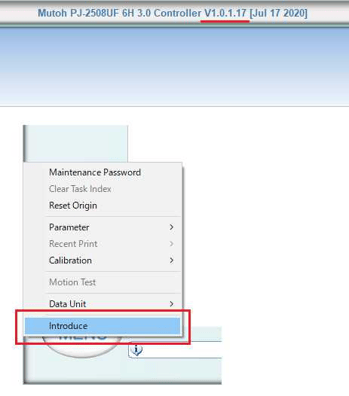
The menu-item "introduce" has been added to the "Menu" button
This function can export the diagnostic information inside the machine to a file for investigating problems.
When a failure occurs, use this functionality before turning-off the printer
Release date: 20 may 2020
1.0.1.16
Bug Fixes
-
Fixed the issue in 6H (YMCK)x2+W+V
When the printer initializes, the software gave "error 1191 The waveform format is incorrect" -
Fixed an issue where print heads were no longer spitting, after pressing the home button.
Now the spitting goes ON when the home button is pressed and the carriage moves to home-position.
Release date: 31 january 2020
1.0.1.14
Changed items
-
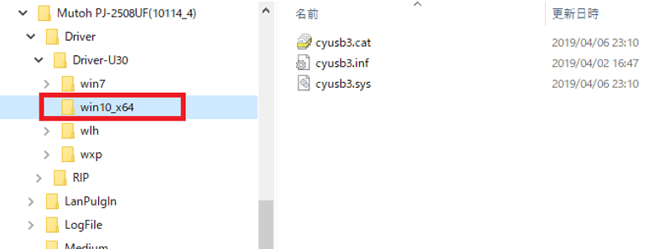
Native USB3 driver support for Windows 10
A new driver has been developed that can now be used on Windows 10, without workaround using "disabling the driver-signature". As a consequence, the native Windows 10 USB driver of the printer software will no longer be rejected after each Windows 10 major software-update by Microsoft.
Make sure to use the correct driver for the correct Windows version!
-
When upgrading on a Windows 10 station, ensure that the old (Windows 7) USB driver is properly uninstalled and removed first in the device-manager!
| Note It's important to remove all old driver remains because using the old (or wrong) Windows 7 driver used on Windows 10, may result in "Ghosting" while printing! |
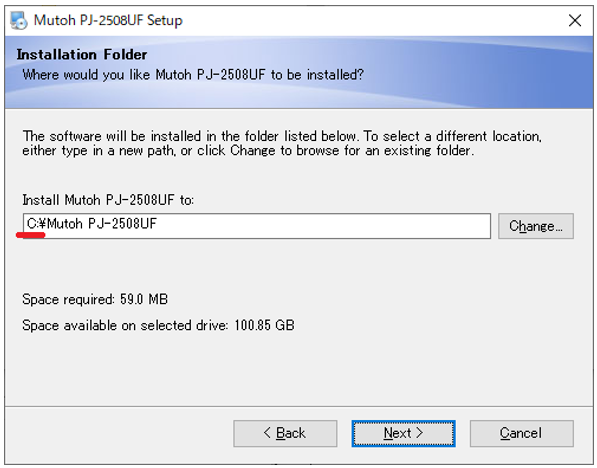
- The default installation drive for the new software is now automatically the C-drive
- A new print head configuration has been added
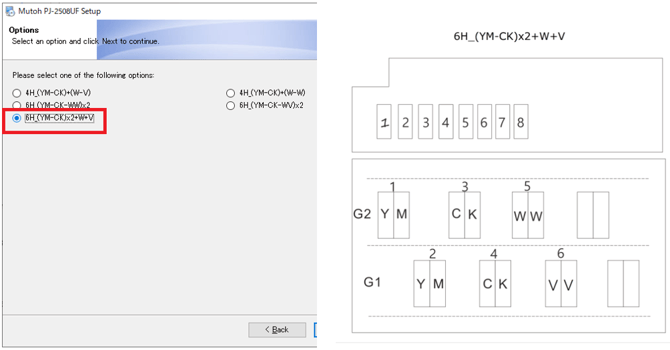
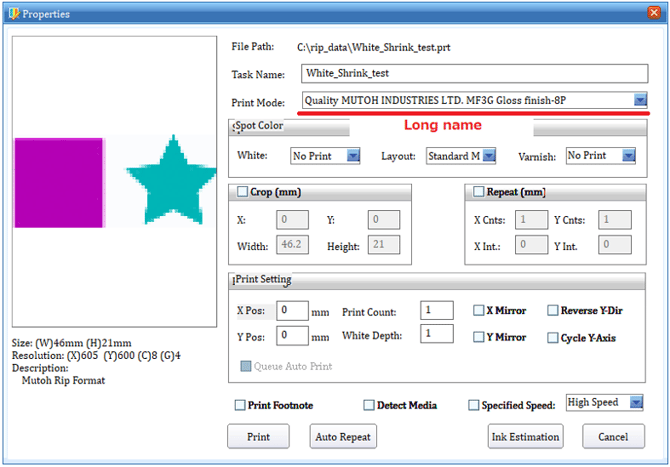
- The version information is now visible in the main screen title bar

- Expanded the field width of the print mode name
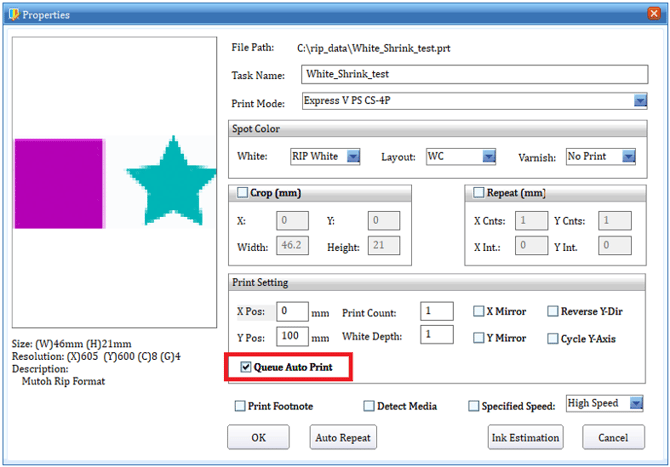
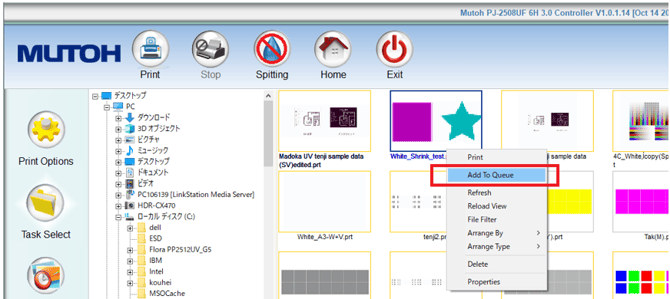
- Added "Queue auto print" function
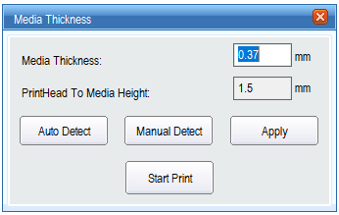
This function starts printing the next data without displaying the "media thickness" detection screen in the following screenshot:
If you check this "Queue Auto Print" checkbox, you can continue printing files continuously without this confirmation-window. The functionality of this checked box will only work when the "Add to Queue" is selected
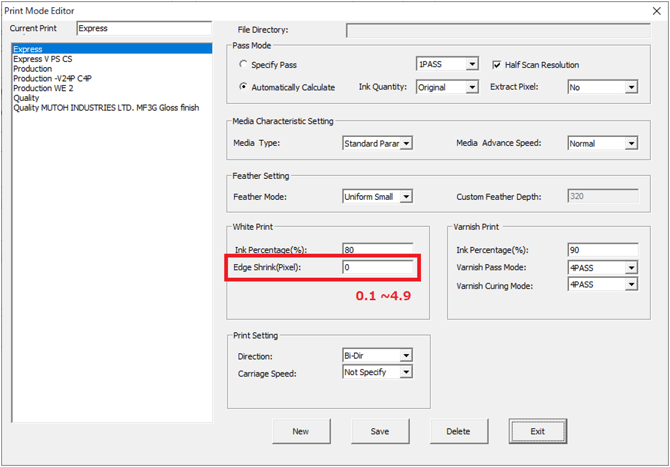
- Experimental function: Added "White Edge Shrink" function in the print mode configurator
This function is experimental and not yet stable. It's currently not yet recommended to use this function. To be used on own risk only.
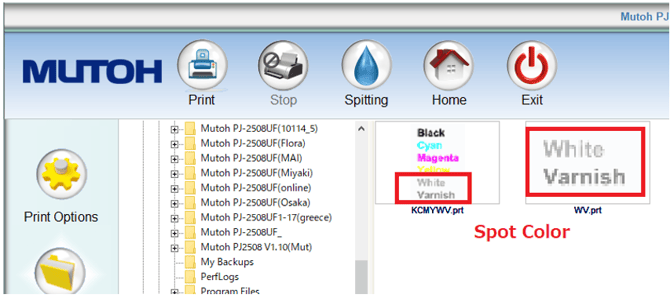
- Spot color preview is now possible in the Task Select window
| Note This new feature will only work when print jobs are reloaded in the Task Select window. For existing jobs which have been imported before this software version, the "Reload View" needs to be executed |
- "Thickness Error Code = -4" when detecting media thickness
Release date: n.a.
1.0.1.10
|
Attachments (2) |
|
| PJ2508_WF_V200.zip 3.18 KB | Mutoh PJ-2508UF_V1.0.1.21.zip |