Skip to content
  • There are no suggestions because the search field is empty.

Daily Maintenance sheet: XPJ waterbased printer Series with DS3 / DS4

TABLE OF CONTENTS


Advised Daily Maintenance Scheme


To keep your printer in perfect shape, it is important to follow the maintenance guidelines. Performing preventative maintenance on the machine improves the longevity of the ink delivery system parts and assists in the optimum performance of the machine together with the ink.

Frequency: Daily at the end of a production day

  • Cleaning the wiper.
  • Cleaning the capping rubbers in the maintenance station.
  • Cleaning edges of the printhead faceplate.
  • Flush the caps in the maintenance station.
  • Rinse away ink remainders from the spitting box sponges.


Important:

  • To perform maintenance, it is important to use the cleaning liquid available specifically for DS3/DS4 inks (DS3-CL1000E)
  • Do not use tap water to perform these activities. The presence of lime in tap water will cause issues.
  • Illustrations used in this document are based on the XPJ-1642WR, XPJ-1682WR and XPJ-1682SR-DSP models. On XPJ-1341WR-P the actions are similar, however the menu structure and printer mechanics might differ.


Daily Maintenance Overview


Required items:

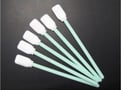
Cleaning sticks - RH2-CLEAN-STICK

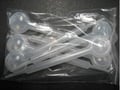
Droppers – 1U021001 – Dropper 6 Pack Set

 gCk7md67d2a1EL6CQ6x50MOwRqDGtAhlrA

hs2cp9ejaweHTPbNhJjsDY87_PJJy2aVuw

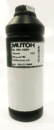
DS3/DS4 Cleaning liquid: DS3-CL1000E

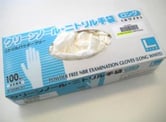
Nitrile Gloves: DH-40162 or PJ-GLOV (or alike)

4JbBSXJ3yyhLlH2mNZ7BKxWL3PYT1Tcspg

kaa5PTMeaNweFZGac96Us8HscL-IupbHFQ

Important:

  • Do not touch the cleaning sticks with your fingers. Skin grease may cause quality issues.
  • Do not reuse dirty cleaning sticks. Dust, dirt and dried ink remainders will cause quality issues.


Step

Display

Touch Panel Action and/or Activity


W1O3q-PKKzvjC2c2Jnvo2EiOjHm5KjzjnA

Tap “Home”

VBzphnRU9EiBdPlUYGWVUeptZxHBoWIt5g


XPJ-1642WR & XPJ-1682WR6TaGG3iveNgzivr1MLlSBurHVZotqeLMjA


XPJ-1682SR-DSP


XPJ-1642WR & XPJ-1682WR 

Tap <Arrow Right> and proceed to step 3.

kT5iehlTyp52rAQFwqN6k-VpfdHivsq1Nw


XPJ-1682SR-DSP

Tap <Arrow Down> until the Menu
CR Maintenance appears.
 Depending on the printer model and installed firmware version, the Setup Menu number may be different.

rHrenZQhH_MrjP6XjgXe5cIBgm1piAfmqQ
 Then, tap <Arrow Right>

kT5iehlTyp52rAQFwqN6k-VpfdHivsq1Nw

Proceed to step 4.


XPJ-1642WR & XPJ-1682WR kINLBnfVLU-dWP3fdQRMKwndQJehzJD78w


Tap <Arrow Down> until the Menu
CR Maintenance appears.
Depending on the printer model and installed firmware version, the Setup Menu number may be different.
 rHrenZQhH_MrjP6XjgXe5cIBgm1piAfmqQ
 Then, tap <Arrow Right>

kT5iehlTyp52rAQFwqN6k-VpfdHivsq1Nw


-IYuSnl2eCwpfK6INhKBwxu629EuU0B5aw

Tap <Enter>

  • The head shuttle will move to the left side of the printer.HIKp6m78vQ9gHYHAldq2oFXeNDIY6YrSIA
  • The wiper will move upward allowing you to clean it.
 

dWgvlusCn5keFHXUU280YkEw13_dDwC-Hg


ISlTLzt4IYIAD463g-wOlhK3mjAzcP9Gew

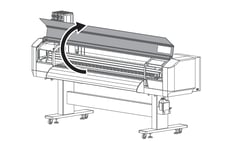
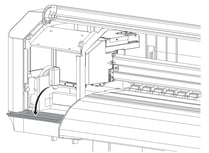
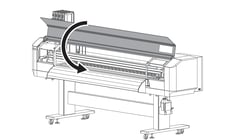
Open the front cover.


PK0eH54dhnQ5iGsjwurpTuQUu5f39u2lHA

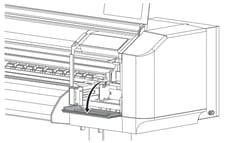
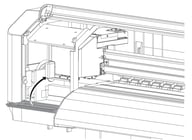
Open the right maintenance cover.


WIPER CLEANING 


XPJ-1642WR
7JjacAY7oZ1PxCKSlSPB-sd90PKEkvGq3g

XPJ-1682WR EGKCnUymwTh3tAVCVARbIVh8_cY59faMdQ

XPJ-1682SR-DSP


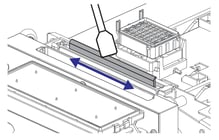
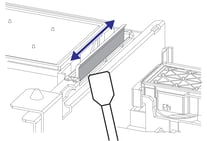
Wipe the left side of the wiper back and forth using a cleaning stick moistened with some cleaning fluid (DS3-CL1000E).


XPJ-1642WR
  

XPJ-1682WR
 DT7iB_oFqbOn91FddoNTaL9bRf8AC93ZKQ

XPJ-1682SR-DSP


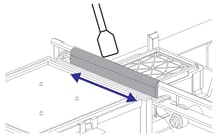
Wipe the right side of the wiper back and forth using a cleaning stick moistened with some cleaning fluid (DS3-CL1000E).


CLEANING AROUND THE PRINT HEADS


WNXntpaY8D7P0R2y024Hy0pE3oR6cnJ6aw

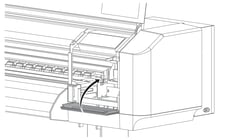
Open the left maintenance cover.


XPJ-1642WR 

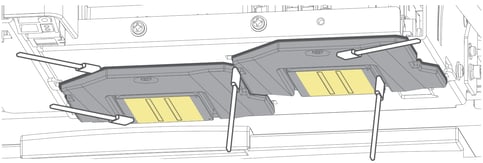
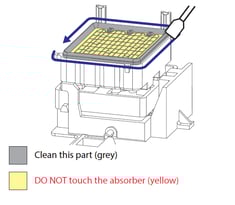
  • Using a cleaning stick moistened with cleaning liquid (DS3-CL1000E), remove accumulated ink and/or dust on the bottom of the print head shuttle.
     See illustration below
  • Clean the surface around the print head, the space between the print head and the print guide and the left & right sides of the print head.
  • Clean the print head guide (black plastic), the space between the print guides and the bottom of the shuttle and the space between the print guides.


XPJ-1642WR Model
1hDlLXNVg2x8m64tuZktiPWcpfbb7Nd9TQ


Clean the area indicated in grey as described above.sOeu1m73YTZb4aKk-F4RpFYpxbLWysr86g

Do not touch the area indicated in yellow (nozzle plate surface).bxNeV2Jxe4L_wwqX1Vnfagn1XbXHrA8i7g


XPJ-1682WR 

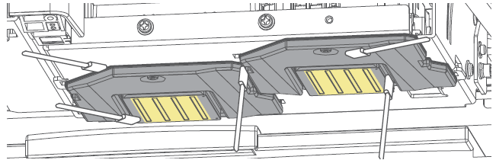
  • Using a cleaning stick moistened with cleaning liquid (DS3-CL1000E), remove accumulated ink and/or dust on the bottom of the print head shuttle.
     See illustration below.
  • Clean the surface around the print head (silver metal part) as well as the area between the print head and the print guide.
  • Clean the print head guide (black plastic part).


Clean the area indicated in grey as described above.sOeu1m73YTZb4aKk-F4RpFYpxbLWysr86g

Do not touch the area indicated in yellow (nozzle plate surface).bxNeV2Jxe4L_wwqX1Vnfagn1XbXHrA8i7g


XPJ-1682SR-DSP

  • Using a cleaning stick moistened with cleaning liquid (DS3-CL1000E), remove accumulated ink and/or dust on the bottom of the print head shuttle.
     See illustration below
  • Clean the surface around the print head, the space between the print head and the print guide and the left & right sides of the print head.
  • Clean the print head guide (black plastic), the space between the print guides and the bottom of the shuttle and the space between the print guides.


XBMcKq6VCvgTC2q6j7TYocv_nwBeVOVWUw


Clean the area indicated in grey as described above.sOeu1m73YTZb4aKk-F4RpFYpxbLWysr86g

Do not touch the area indicated in yellow (nozzle plate surface).bxNeV2Jxe4L_wwqX1Vnfagn1XbXHrA8i7g


CLEANING AROUND THE CAPPING UNIT & FLUSHING BOX SPONGE 


z-D2OGA7J44enNDV0EqwKxMi26raCvs7tw

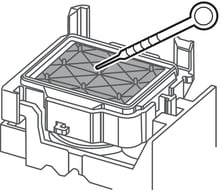
Use a cleaning stick moistened with some cleaning fluid (DS3-CL1000E) to clean around the capping rubber of each capping unit to remove ink remainders and dust.


dWgvlusCn5keFHXUU280YkEw13_dDwC-Hg

Tap the “Down Arrow” to activate the capping station pumps to evacuate ink/cleaning liquid.
 rHrenZQhH_MrjP6XjgXe5cIBgm1piAfmqQ


lNT3PdAGyhfyFWptZjXaMcYlHaV5n2RMqA

Using a dropper, moisten the capping units with some cleaning fluid (DS3-CL1000E).


Pumping End

As soon as the liquid has been evacuated by the pump, stop the pumps by tapping the “Down Arrow” again.

 “Pumping End” is displayed briefly.rHrenZQhH_MrjP6XjgXe5cIBgm1piAfmqQ


5MHxObldV66W1KqQP7m4YJNEM6PmXLw3mg

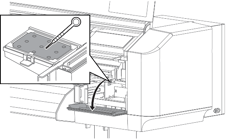
To extend the longevity of the flushing box sponge, it is recommended to moisten it with some maintenance cleaner.


WnjZdd3HmSrmjNsId0Ei64c6vzJKVAgyNg

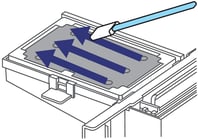
Use a cleaning stick to clean the complete area of the spitting box sponge.


After some time, the sponge will be completely saturated and the ink is no longer absorbed. At that time, the sponge needs to be replaced.


rOqYwreyeoGqkT3GuyspEJTx9iEGlkYDJQ

Close the left maintenance cover.


eGEy5sCRS6qj-G7nT9b38-lVMRyBfrqPHg

Close the right maintenance cover.


TXOTPgS9uw52Qlh6SWAZX2-N92xASCmmqA

Close the front cover.


dWgvlusCn5keFHXUU280YkEw13_dDwC-Hg

Tap <Enter>.

HIKp6m78vQ9gHYHAldq2oFXeNDIY6YrSIA


-IYuSnl2eCwpfK6INhKBwxu629EuU0B5aw

Tap “Home” to end the maintenance process.

VBzphnRU9EiBdPlUYGWVUeptZxHBoWIt5g


Maintenance & consumable replacement without specific fixed scheme.


Details on how to perform these maintenance & consumable replacements can be found in the XPJ-1642WR / XPJ-1682WR / XPJ-1682SR-P (XPJ-1682SR-DSP) Printer Operation Manual.

Maintenance

When to perform & Required parts

Clean the lens of the colour sensor.

  • The printer repeatedly fails to perform auto calibration.

Replace the flushing pad / spitting box sponge.

  • The flushing pad/spitting sponge is fully saturated and the ink is no longer absorbed.

  • XPJ-1642WR: Flushing Pad - IJ-FLABS-01 (3 pieces/box)

  • XPJ-1682WR: Spitting Box Absorbent - VJ16STG-FB-W3 (3 pieces/box)

  • XPJ-1682SR-DSP: Flushing Pad - IJ-FLABS-01 (3 pieces/box)

Replace the cutter blade.

  • The printer is no longer able to cut paper smoothly or completely.
  • XPJ-1642WR: Cutter Blade / Sheet-Off Knife - VJ-CB

  • XPJ-1682WR: Cutter Blade / Sheet-Off Knife - VJ-CB

  • XPJ-1682SR-DSP: Cutter Blade / Sheet-Off Knife - VJ-CB

  • XPJ-1341WR-P: Sheet of Knife VJ-CB

Replace the exhaust fan filters.

  • The exhaust filters collect ink mist.
     Please inspect them regularly and replace them when needed.
  • This feature is applicable only for XPJ-1642WR:
     Fan Filter – IJ-EFFLT-01 – 18 pieces per box.


rWAxSK_FflplMuQN4i725srWGBPM6shZlA

kue8qmUil8bauuMhrtvmhgkByTk91-YJGg

3AXBY5hK2Q5g6OYfNHNMSPZnCeSW4BqKeA

Fresh Filter

Still OK

Replacement Required

Replace the wiper blade

Situations requiring wiper replacement:

  1. The wiper is deformed.
  2. The wiper can no longer be cleaned properly because too much dried ink has accumulated on it. As such, head cleaning does not work efficiently.
  3. ±12 months have elapsed since the previous wiper replacement.

Wiper part numbers:

XPJ-1642WR:

  • Replaceable wiper for head heights Low1, Low2 and medium – IJ-RWPS-01 (2 pieces/box)
  • Replaceable wiper for high head height only – IJ-RWPSH-01 (2 pieces/box)

XPJ-1682WR: Replaceable wiper in holder VJ1638UH-WIP (2 pieces/box)

XPJ-1682SR-DSP: Replaceable wiper IJ-RWPS-01 (2 pieces/box)

XPJ-1341WR-P: Replaceable wiper IJ-WIP-02 (2 pieces/box)


Attachments (1)
AP-76976_Rev04.pdf