
The document describes all necessary steps to load MS51 inks into a new XpertJet 1641SR-Pro printer.
Please follow the procedure below in order to correctly install our MS51 inks.
Required items:
- Firmware V1.04 + MSA 5.1.1.0 (or higher)
- Cleaning & Ink:
- MS41 300 ml cleaning packs (MS41-CL300E)
XPJ-1641SR-P Part N° # MS41-CL300E 4
- MS51 ink for XpertJet-Pro
XPJ-1641SR-P Part N° # MS51-BK1000E 1 MS51-CY1000E 1 MS51-MA1000E 1 MS51-YE1000E 1
- Cleaning fluid to carry out the daily maintenance: VJ-ULVA1-ML500
|
Important The Start-up cleaning liquid (MS41-CL300E) is shipped with every new printer. |
Procedure:
- Boot the new printer in "Board Manager Mode" and update the firmware with the MSA 5.1.1.0 tool (or higher).
|
WARNING:
|
- Boot the printer in “User Mode” and enter the initial settings (language, IP address…).
- Activate the printer.
- Reboot the printer.
- Perform the “initial cleaning – initial ink charge”:
(please consult the Start-up guide for detailed instructions on how to load correctly the cleaning/ink in the ink packs):


- Unpack and insert the MS41 300ml Cleaning packs and MS41 cleaning smart cards
- Use the MS41 cleaner 300 ml smart chips to perform the wash cycle.
- The display will show: "Wash Retry?" -> Choose No

- Insert the MS51 ink packs in the ink cases, install them in the printer and insert the smart chips.
- The "Ink Charge" with the MS51 inks will be initiated.
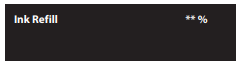
- Once the ink has been loaded, following message will appear (ink charging cycle is completed)