Requirements
To ensure a smooth transition, make sure to address these two key areas:
- Printer Region Code → Determines if the hardware can accept US81 ink.
- Re-registration in VerteLith → Ensures the RIP software detects and utilizes the new ink.
Step-by-Step Procedure
Printer Setup:
- Update firmware to 1.05 (or higher) and VerteLith to 8.6 (or higher).
- Obtain an MPI file from the printer and send it to Mutoh Europe Hardware support.
- Upload the returned ULK file from Mutoh Europe (enables US81 support).
- Obtain a new MPI file and send it again to Mutoh Europe Hardware support.
- Upload the second ULK file (allows ink type change).
- Start the printer in Self-diagnosis mode.
- Go to Parameter > Update > Ink Type and select US81.
- Reboot the printer in self-diagnosis mode, then perform an ink discharge (Adjustment > Ink Discharge).
- Go to Ink Charge > Normal and perform an ink charge with US81 ink and SC cards.
- Reboot the printer in User Mode.
Re-register the Printer in VerteLith:
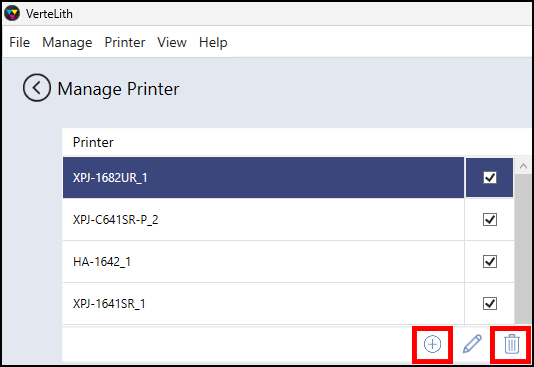
- In VerteLith, go to Manage > Printer and check the ink type shown in Ink name:
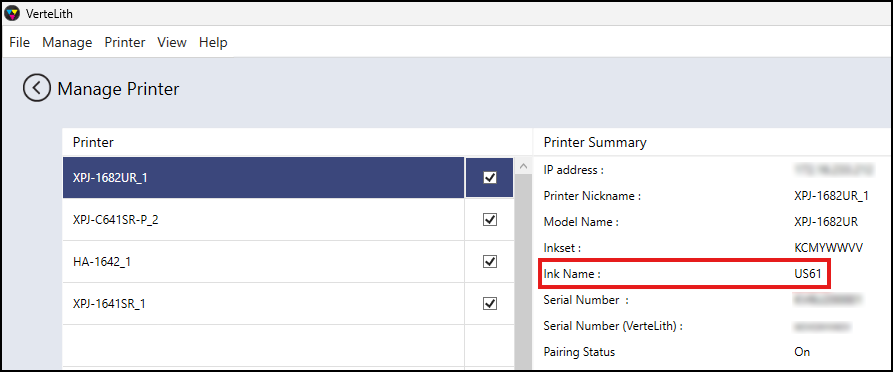
- If it is not US81, follow these steps to re-register:
- Delete XPJ-1682UR.
- Re-register the XPJ-1682UR now converted to US81.
Note: Deleting a printer removes all jobs and print environments. - After re-registration, check that US81 appears under Ink Name.