The Xpertjet printer family can handle a large variety of digital printing material types. Depending on the environmental conditions in the room where the Xpertjet is installed, the media type and dedicated application the behavior of the material on the printer may vary considerably. Moreover, in each geographical area, similar media may behave differently depending on the manufacturer and/or manufacturing-process.
As a result some materials might behave less good than others and may potentially result in print quality issues. Cited tips and tricks can be useful tools to improve the media handling on your Xpertjet printer.
However, it is not a guarantee that every media kind which is available on the market will be processed properly on the Xpertjet. Media compatibility still needs to be evaluated on a case-by-case basis.
This document describes the different possible media handling difficulties one might encounter when printing on a Xpertjet printer and summarizes some tips and tricks on how to improve these occurrences.
General Rule-of-thumbs:
1.Alignment of winding system:
The media unwinding-winding system should be at all times properly aligned. As a result the alignment of the system should always be the first step in diagnosing media handling issues.
When a printer is moved to a different location it is a good idea to check if the winder is still within specification.
Please consult the dedicated User Guide to understand how to perform such an alignment.
--> Operation Manual / Accessory documentation / Winders
2.The material should be loaded in an accurate way:
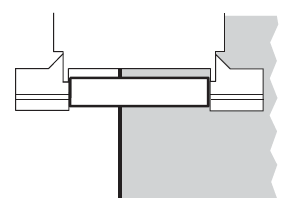
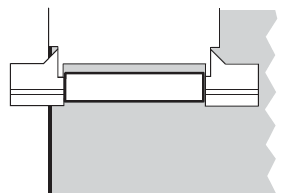
When the media is not attached precisely to the front winder core it might shift to the left and right, because it will try to compensate for the accumulated tensions.
- Position of the edge of the media compared to the pressure rollers
| Good | Not good |
 |  |
3) When working with the standard Xpertjet media roll holders:
The machine is equipped with a 'torque' roll holder mechanism, the torque can be increased (plate up) / decreased (plate down).
There are 2 possible configurations: torque enabled, torque disabled.
- Torque enabled:
| high torque left side | high torque right side |
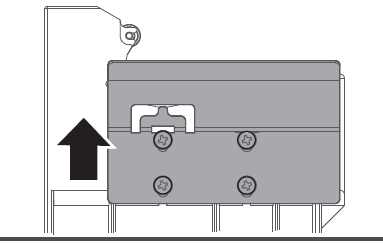 | 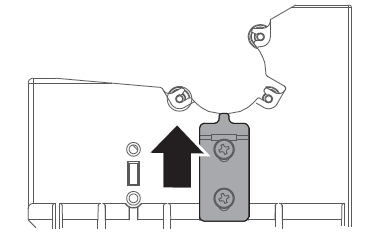 |
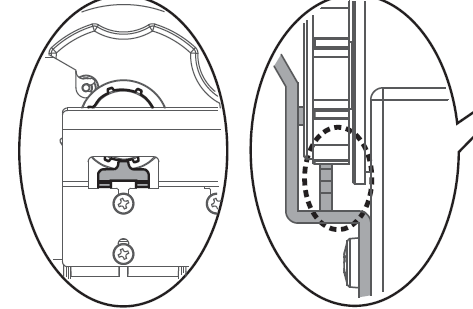
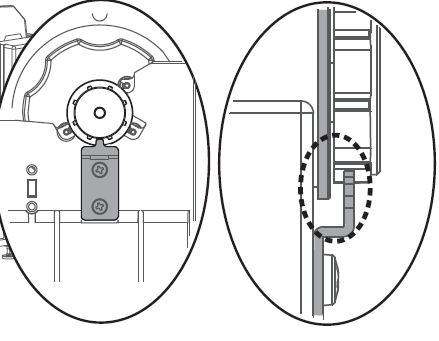
Move the media roll holder torque plate to the maximum setting 'High torque' on both left and right holder. This will increase the pull force on the roll holders resulting in increased media slip under the pressure rollers between each media-feed.
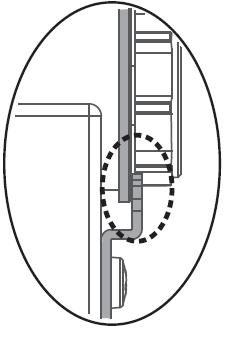
Position of this torque plate is very important:
| Left side | Right side | Not good |
 |  |  |
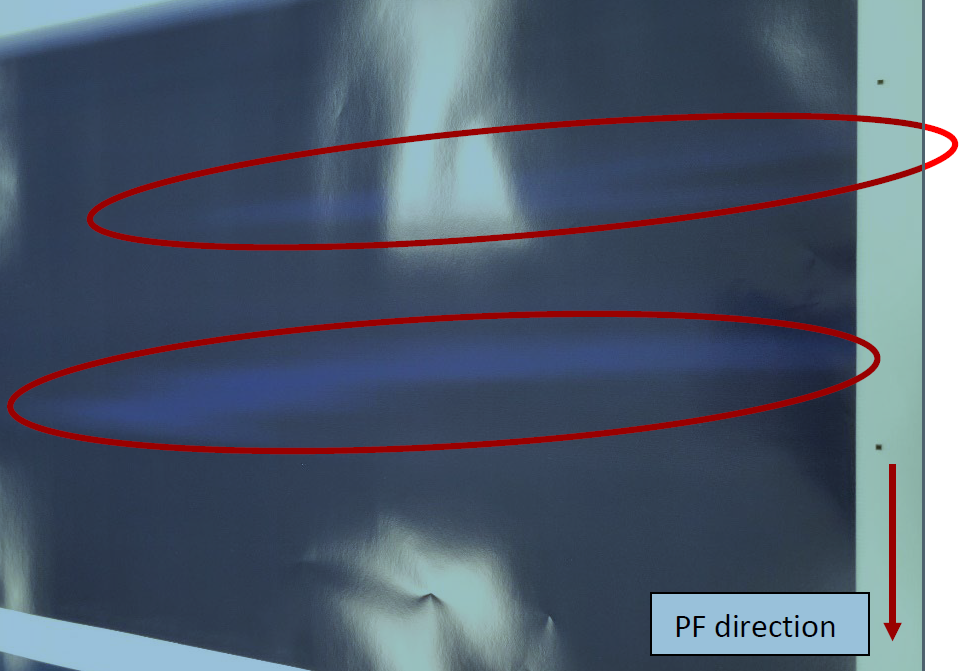
Improper position of the shaft towards the torque plate might result in banding on the prints:
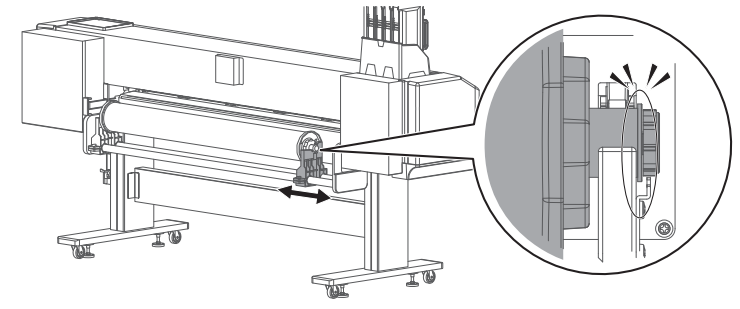
- Torque disabled:
Check that the shaft is fitted as shown in the illustration
4) Lever position:
- The “Media loading lever” has two positions (to be used depending on the situation)
- In the first position the pressure on the material is limited allowing it to slip.
- In the second position the pressure is higher creating a more firm grip on the material.
| Normal pressure | High pressure |
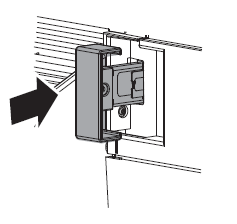 | 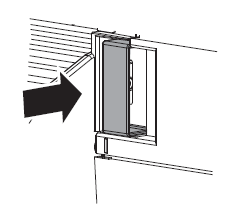 |
In most cases the first position is recommended. Allowing some media slip will result in more straight media transportation and will reduce the media cockling in general.
5) Pressure roller disablers:
When printing on certain materials the media has the tendency to create cockling causing head strikes. This could be prevented or reduced by changing or disabling the pressure by pulling the orange lever on the pressure roller.
In some cases you could try to lower or disable the pressure on the pressure rollers ( 3 to 4) on the edges of the media.
| Normal pressure (standard) | Lowe pressure | disable |
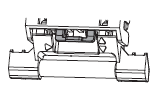 | 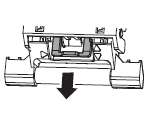 | 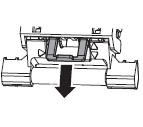 |
6) General attention points:
- Do not leave the media in a cold place overnight. The media should be acclimatised to the room temperature of the printer.
- Do not leave the media loaded inside the printer overnight. It will absorb the environmental humidity, resulting in a change of media behaviour inside the printer (curling).
- Vacuum fans: Use the option "EX high", this is already available from FW v1.04. Depending on the RIP software you are using please check also there this option. If your software doesn't have this option then you should deselect the option of the "vacuum fan" in the RIP software and change the power of the vacuum fan on the machine in your user type to ex high.
- A common problem of media cockling is also the use of too high temperature for pre and platen heater. You could try to reduce the temperature of the pre and platen heater with 2 or 3 degrees.
- In case media cockling cannot be prevented by means of these basic rules then there is still the option to install an extra media slope kit to prevent media cockling --> media slope kit .
Was this article helpful?
That’s Great!
Thank you for your feedback
Sorry! We couldn't be helpful
Thank you for your feedback
Feedback sent
We appreciate your effort and will try to fix the article