If VerteLith cannot access the network drives, a line must be added to the registry.
Try the following instructions:
cmd.exe:
1. Press Windows+R, type cmd.exe and press CTRL+SHIFT+ENTER to run as administrator.
2. Copy and paste the following line into cmd.exe:
reg add "HKEY_LOCAL_MACHINE\Software\Microsoft\Windows\CurrentVersion\Policies\System" /v "EnableLinkedConnections" /t REG_DWORD /d 0x00000001 /f
3. Press ‘Enter’.
4. You should get the following back:

5. Restart Vertelith.
Network drives should now be accessible.
If you prefer using Powershell instead of cmd.exe:
1. Press Windows+R, type powershell and press CTRL+SHIFT+ENTER to run as administrator.
2. Copy and paste the following line into powershell:
New-ItemProperty -Path 'HKLM:\Software\Microsoft\Windows\CurrentVersion\Policies\System' -Name 'EnableLinkedConnections' -Value '1' -PropertyType 'DWORD' –Force
3. Press ‘Enter’.
4. You should get the following back:
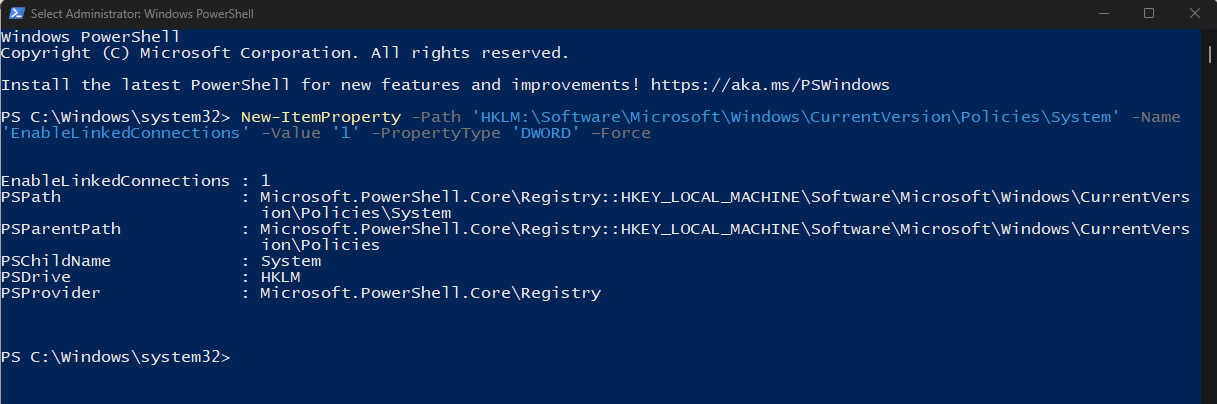
5. Restart Vertelith.
Network drives should now be accessible.
Was this article helpful?
That’s Great!
Thank you for your feedback
Sorry! We couldn't be helpful
Thank you for your feedback
Feedback sent
We appreciate your effort and will try to fix the article