
TABLE OF CONTENTS
- Preparation
- Authentication Procedure
- Vertelith printer registration
- Troubleshooting the "Startup Error"
- Important Note: To register your D&M License, you will use the MSA tool.
- Download the latest version from Mutoh Club: https://mutoh-club.com/mutoh/user/
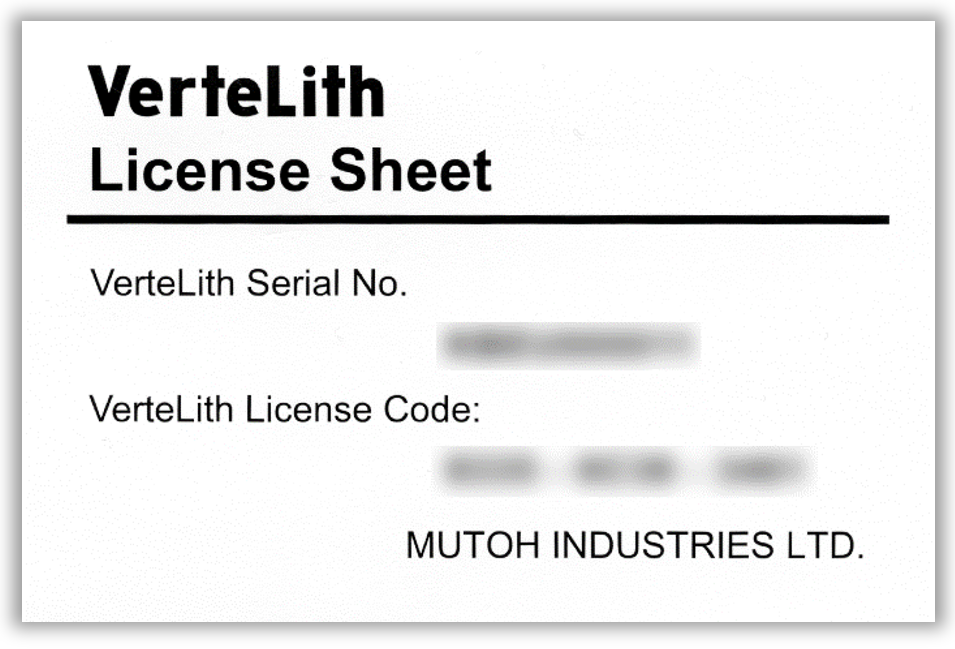
- Each VerteLith license is paired with the following information:
- PC information
- Company information
- D&M License
- D&M licenses are managed on the Mutoh Club website for Dealers (https://club.mutoh.co.jp/mutoh/user/) once registration has been done. It allows you to un-pair a license and re-pair the license with another computer inside the same company.
- Note: The number of times allowed to transfer a pairing (e.g. in case of a computer failure) is limited to "the number of licenses purchased + 2". E.g: If the number of licenses purchased is "1", the limit allowed is "3 times".
NOTE: Store your VerteLith License Sheet in a safe place for future reference!
Preparation
To use your D&M License, please complete the following tasks on beforehand:
- Log-in on the MUTOH Club for Dealers: https://club.mutoh.co.jp/mutoh/user/ . If you or your company are not yet registered in the MUTOH Club for Dealers, please check the following article:
Mutoh Club - Dealer User registration - Download your VerteLith D&M copy from the following location:
- Mutoh Club for Dealers: https://club.mutoh.co.jp/mutoh/user/
- Click on the tab and link VerteLith Info
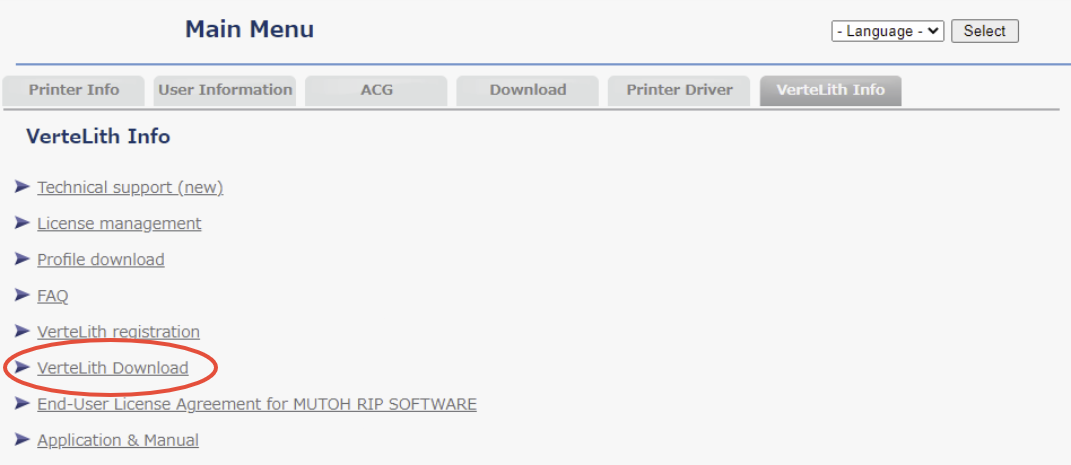
- Click on the link VerteLith Download
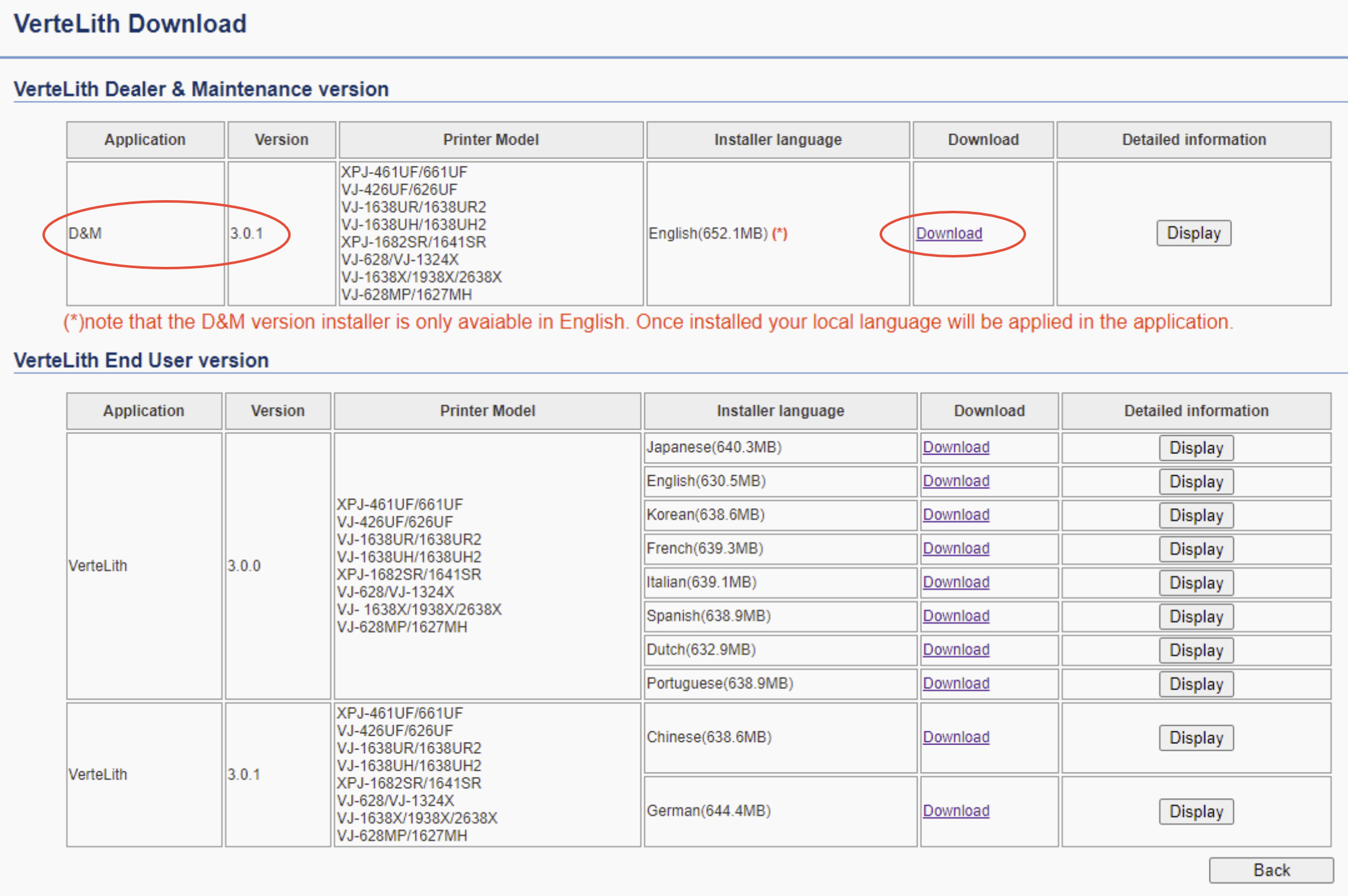
- Click on Download (make sure to download the correct version: "D&M" as indicated with the red circle in the image below. Note: The installer is only available in English. Once the software is installed you can choose your native language in the Preferences pane.)
- Once the download has finished, unzip the .zip file
- The zip file contains these the Vertelith Installer package. Install the software by double clicking the Startinstaller.exe file.
Authentication Procedure
We will use the MSA (Mutoh Service Assistance) to register your D&M License. Download the latest version from Mutoh Club.
- Start the MSA software
- Click the MSA user registration
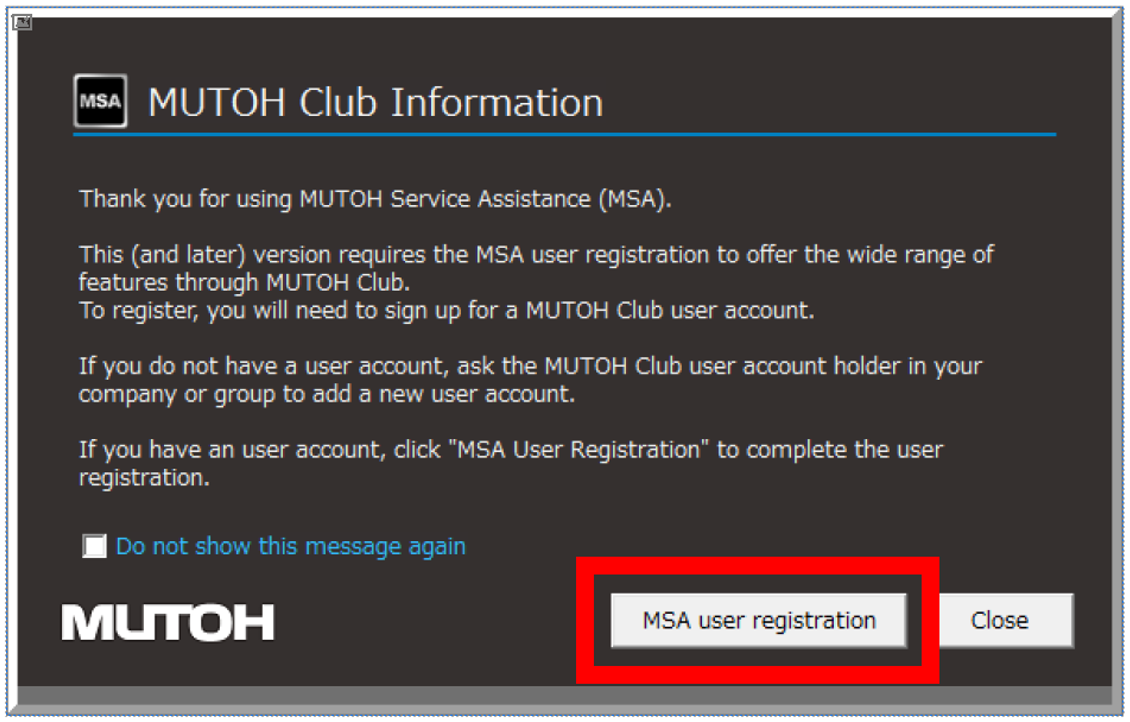
- Read the contents and click Next
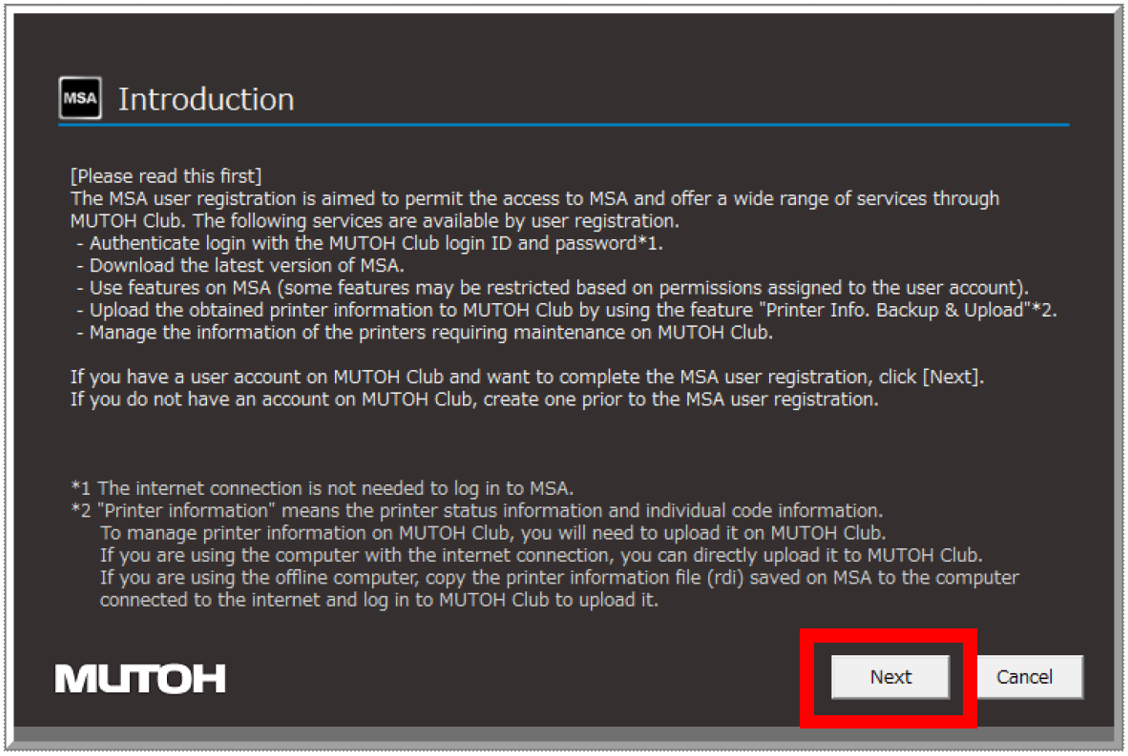
- Select how to connect to MUTOH Club (Online or Offline) and click Next. If your computer has internet access, choose Online for the fastest workflow.
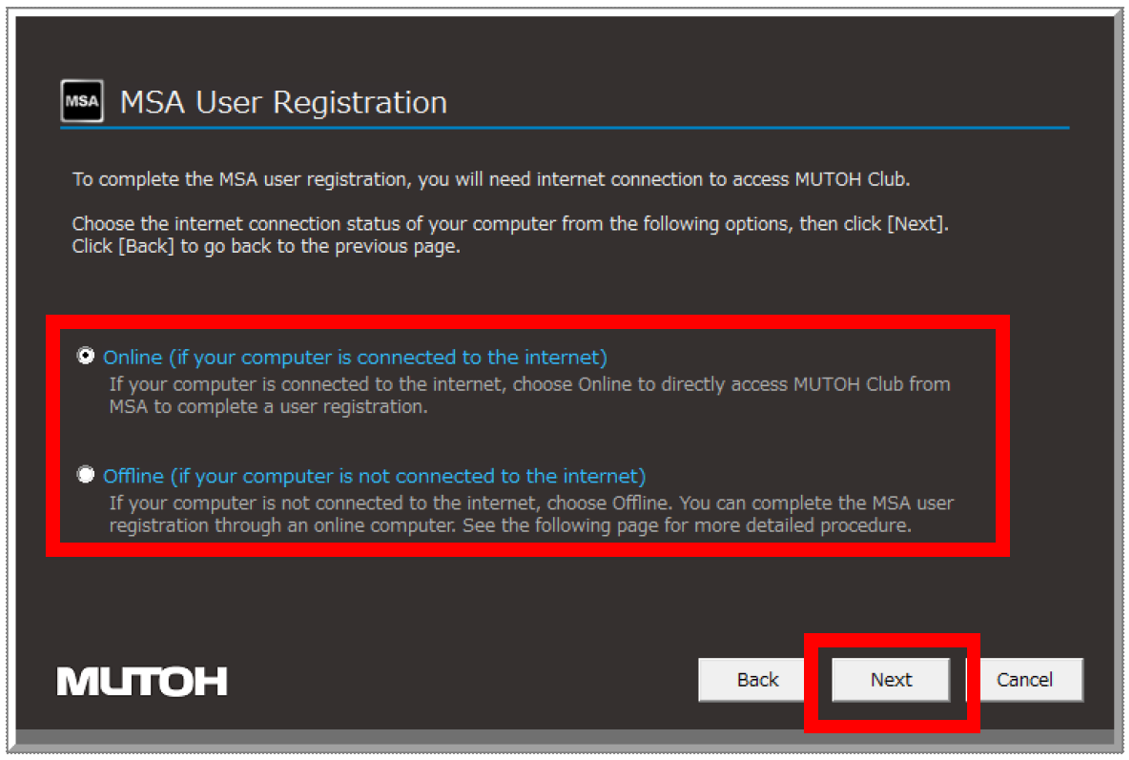
If your computer is online follow the left hand workflow, if your computer is offline follow the right hand side workflow:
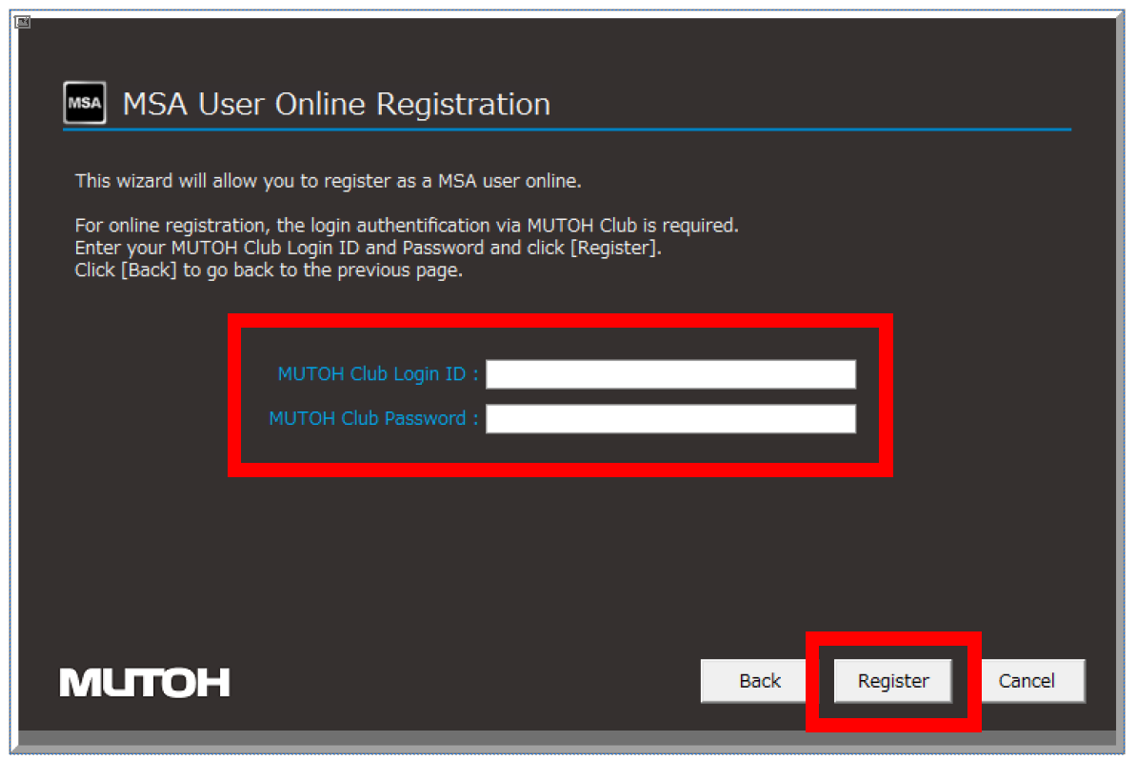
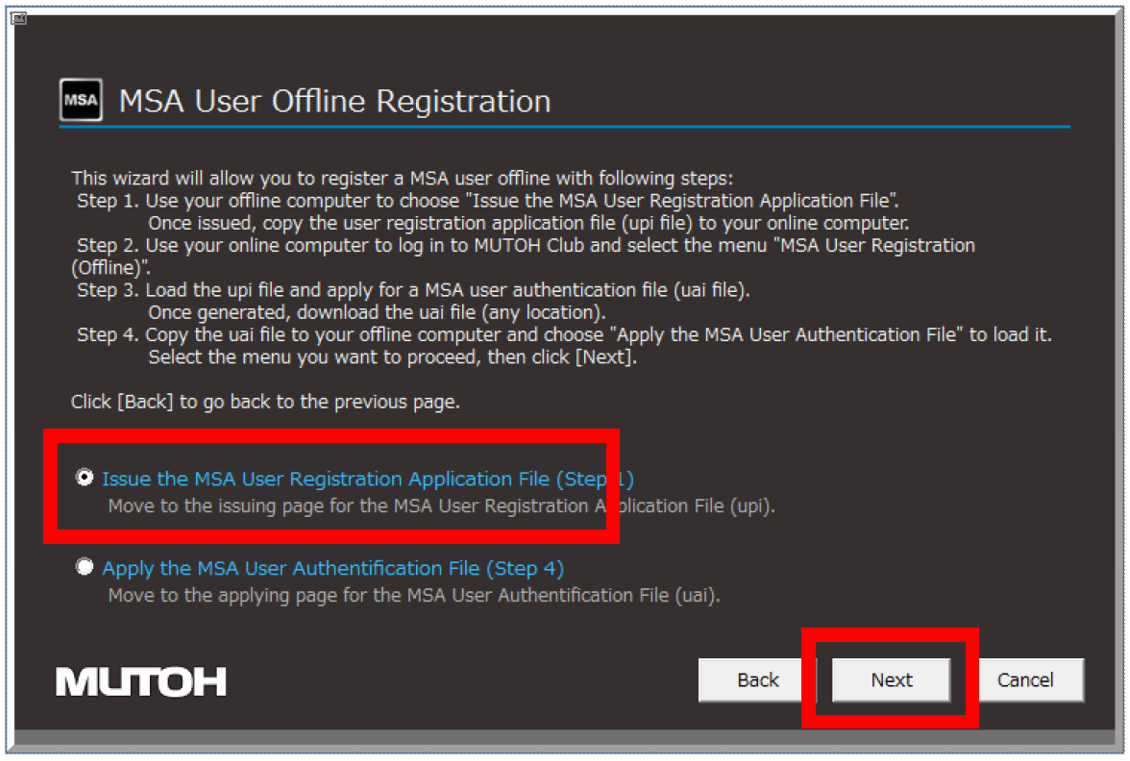
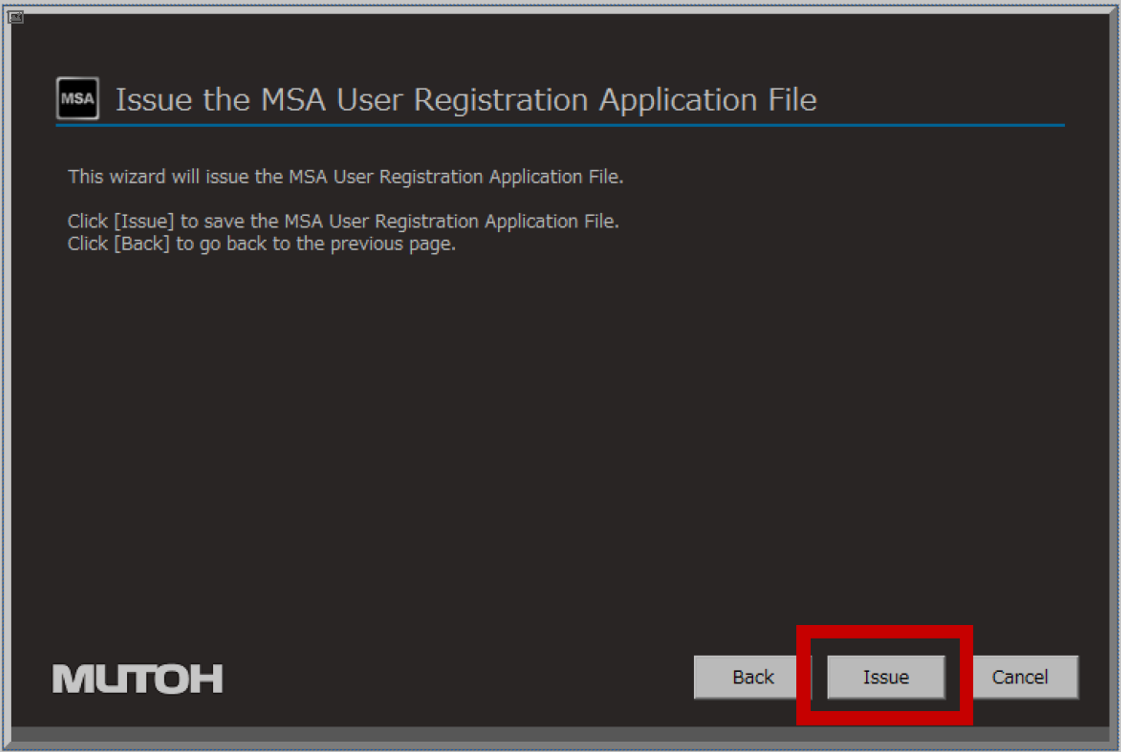
ONLINE in case your computer with MSA is directly connected to the internet Enter your MUTOH Club login ID and password and click Register | OFFLINE (in case your computer with MSA is not connected to the internet) Select "Issue the MSA User Registration Application File (Step 1) and click Next |
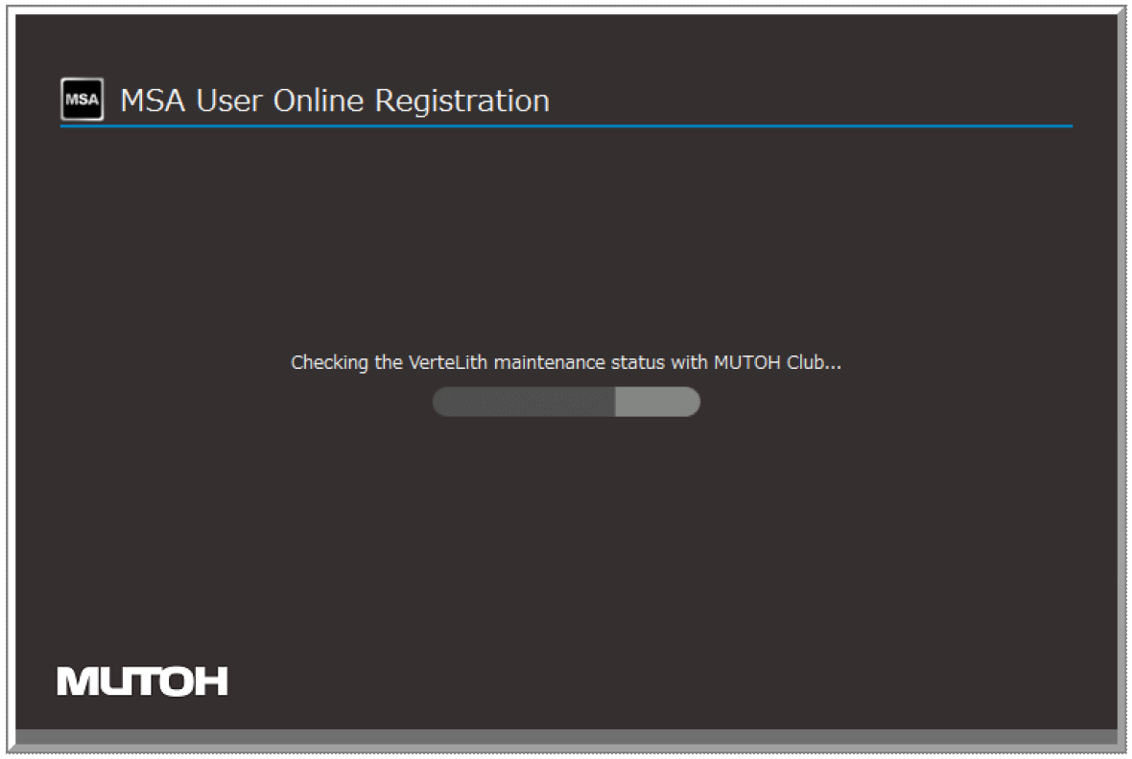
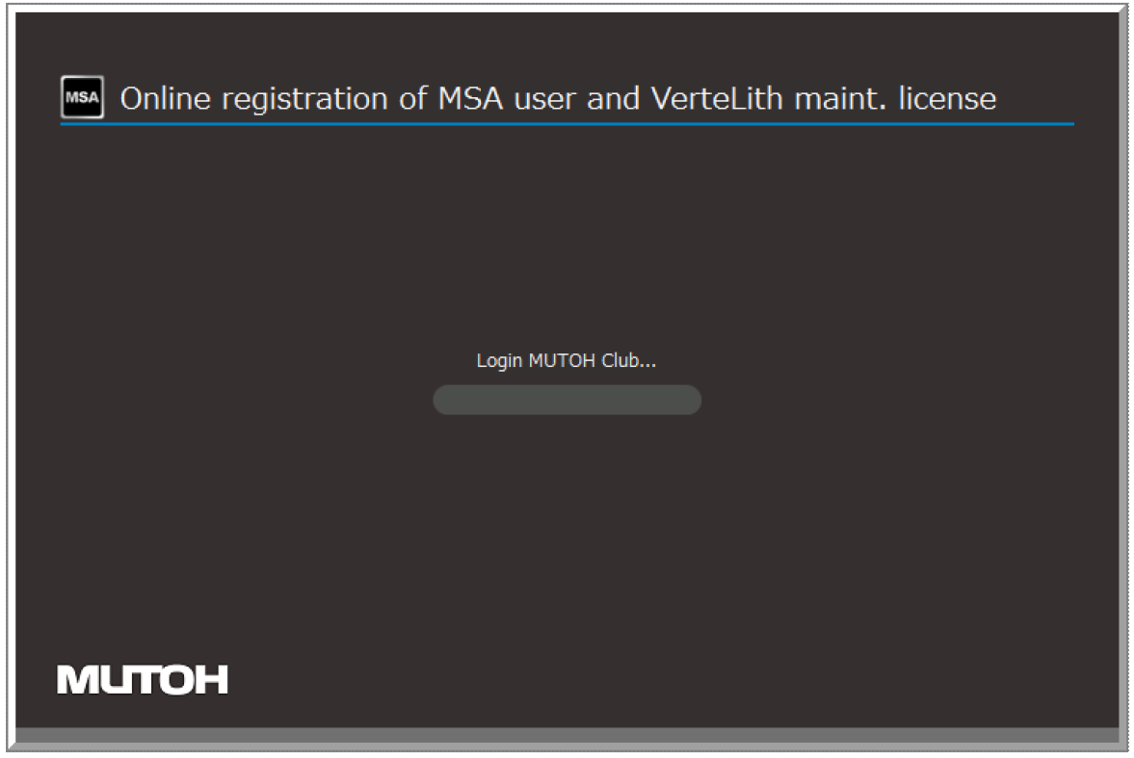
The following message appears while logging in to MUTOH Club | Click Issue and save the MSA user registration application file (upiv) |
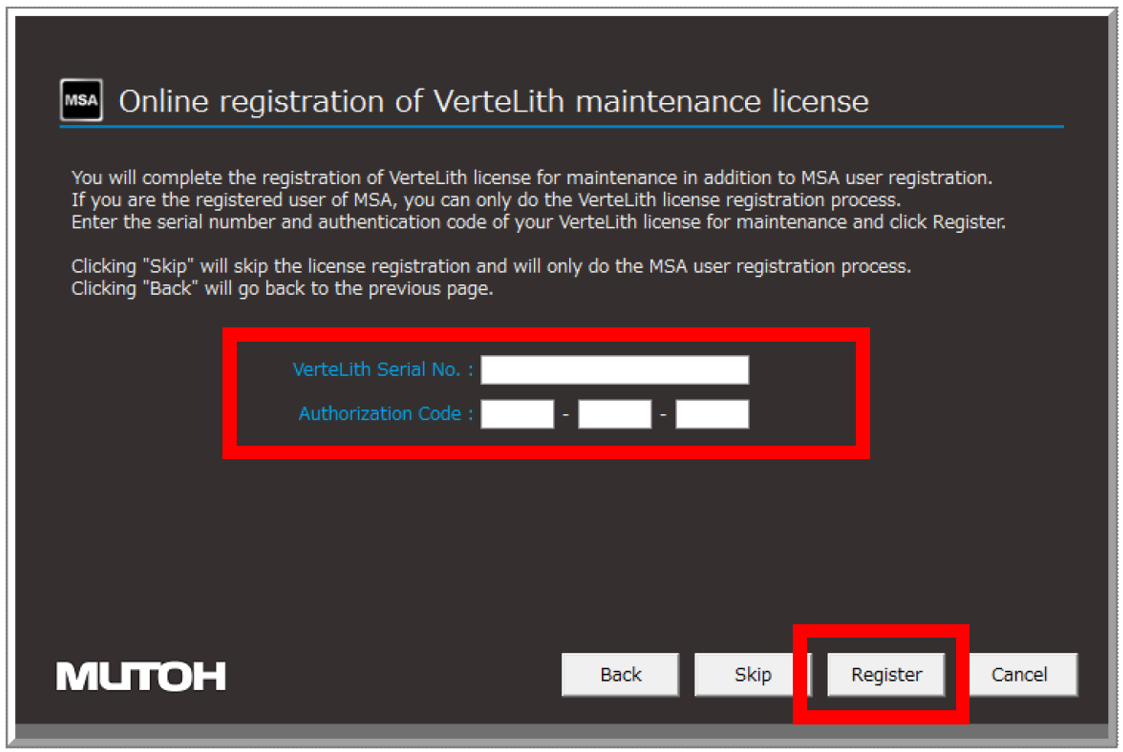
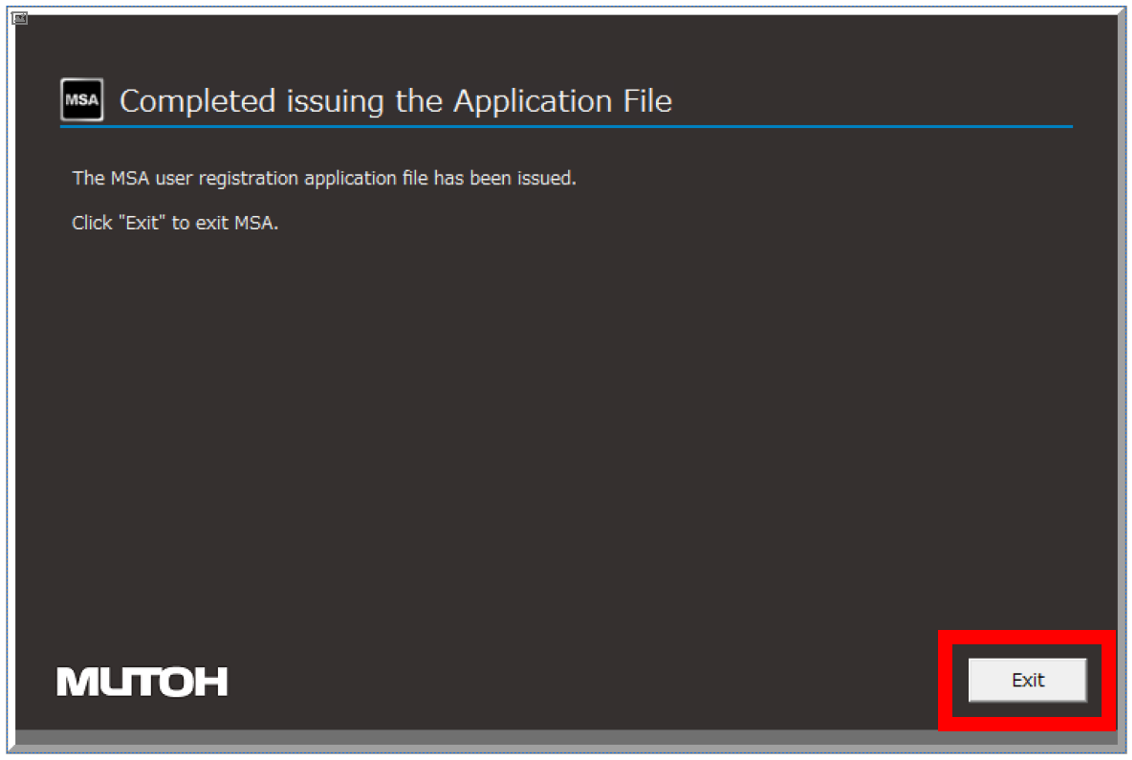
Enter your D&M Licence information (VerteLith serial number and authentication code) and click Register | Once completed, the following message appears. Click Exit |
The following message appears while registering in MUTOH Club |

|
Once registration is completed, the following message appears. Click Exit. 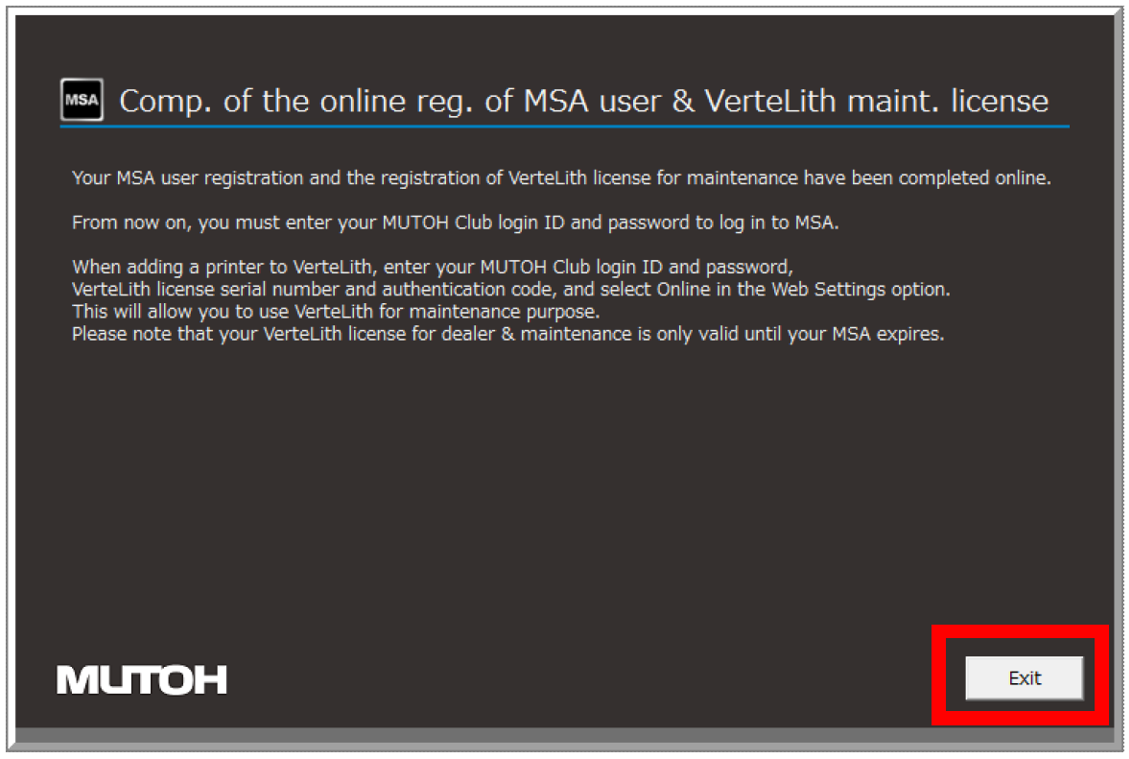 | Select "Apply the MSA User Authentication File" and click Next 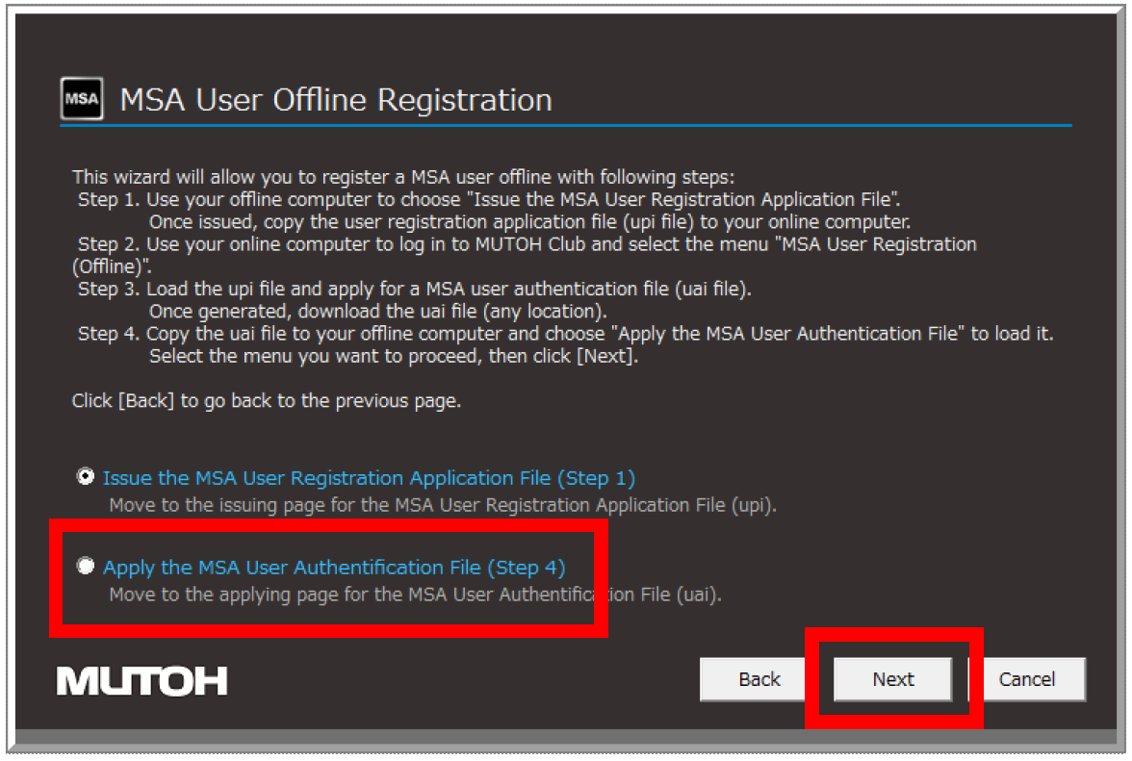 |
Enter your MUTOH Club login ID and password and click Apply. Select and apply the MSA user authentication file (.uai) you have just downloaded. | |
Once registration is completed, the following message appears. Click Exit.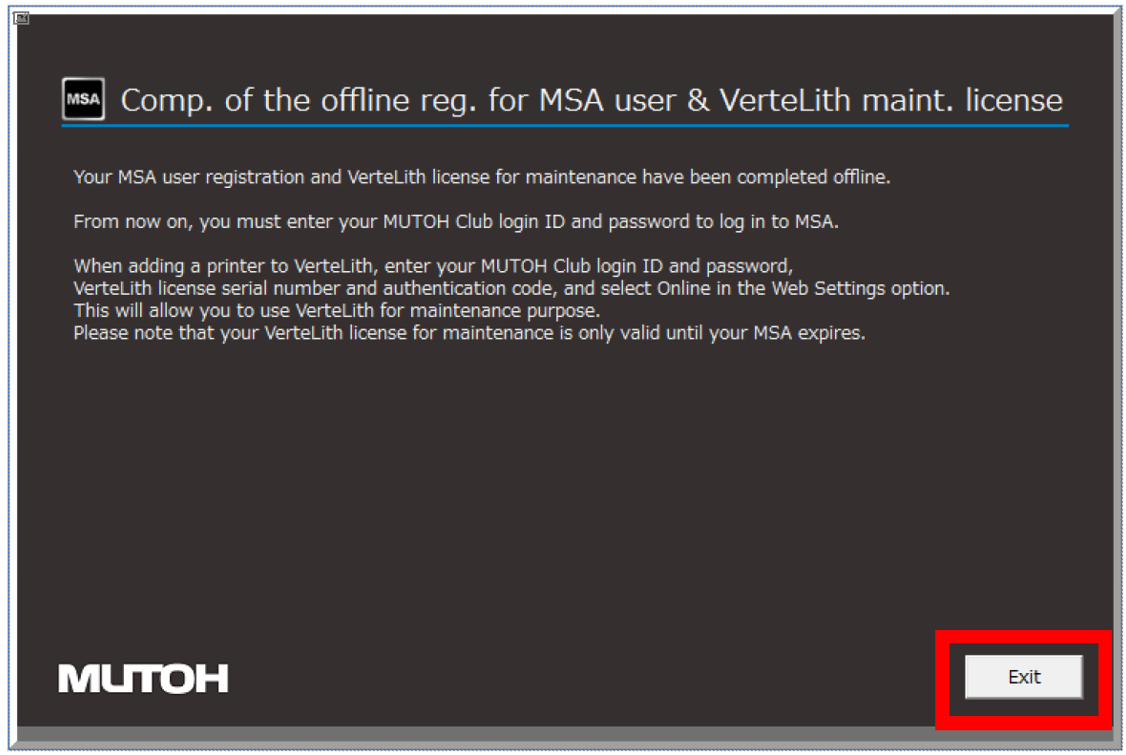 |
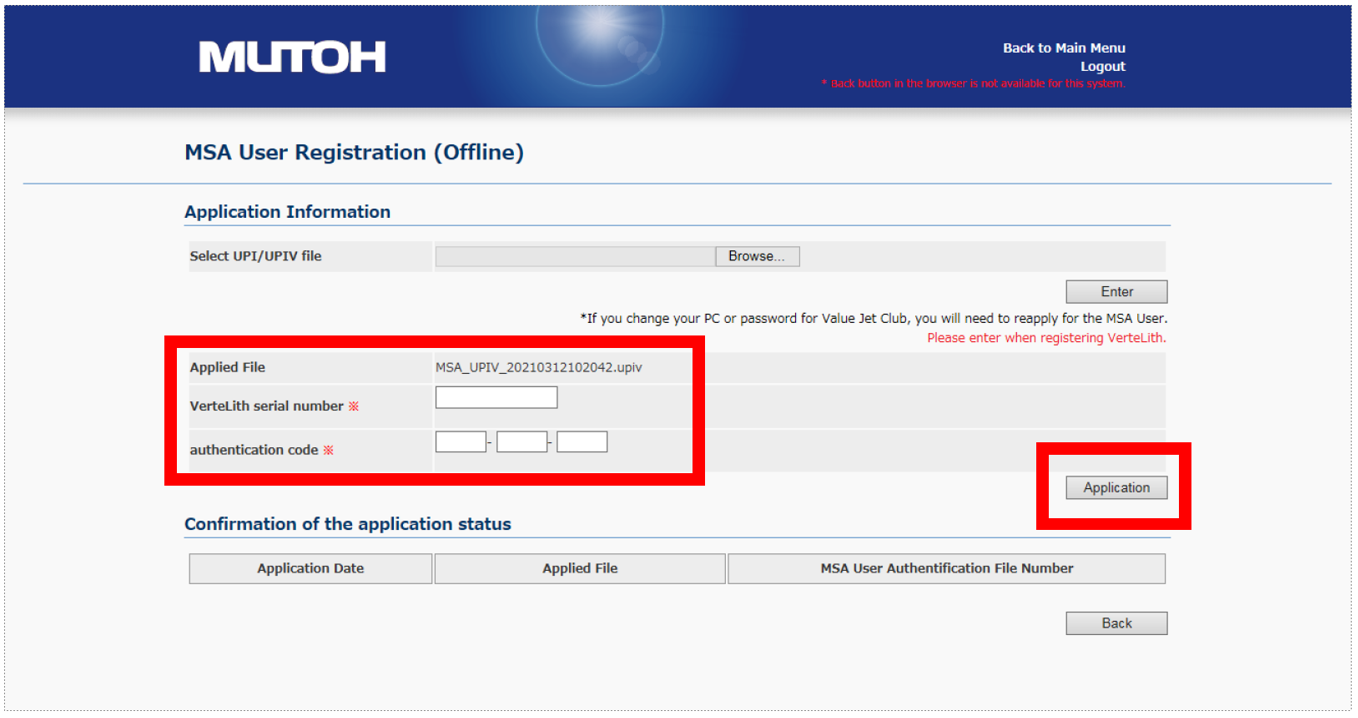
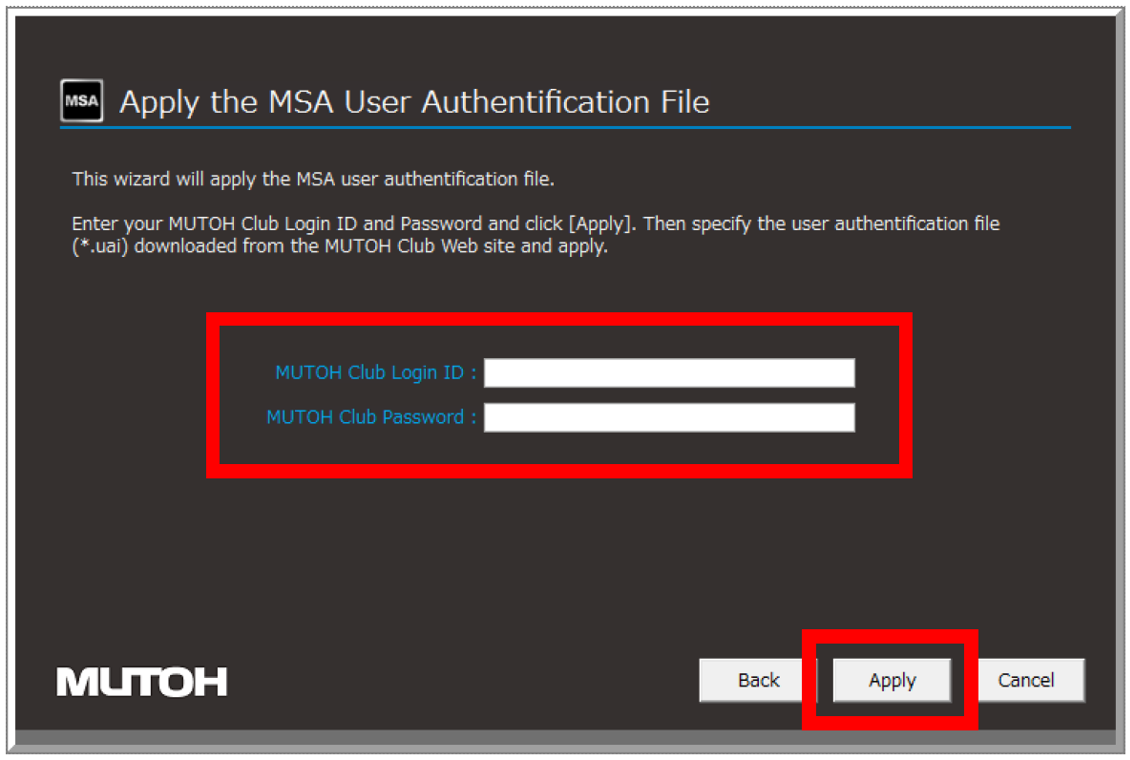
Vertelith printer registration
- Start VerteLith
- To start using VerteLith we'll need to add a printer first.
- Enter the necessary information in Login Settings and Web Settings and click Next
- VerteLith Serial No. / Authorization Code: Enter your D&M License serial number and authentication code found on the License Sheet
- Make sure to select Online in Web Settings
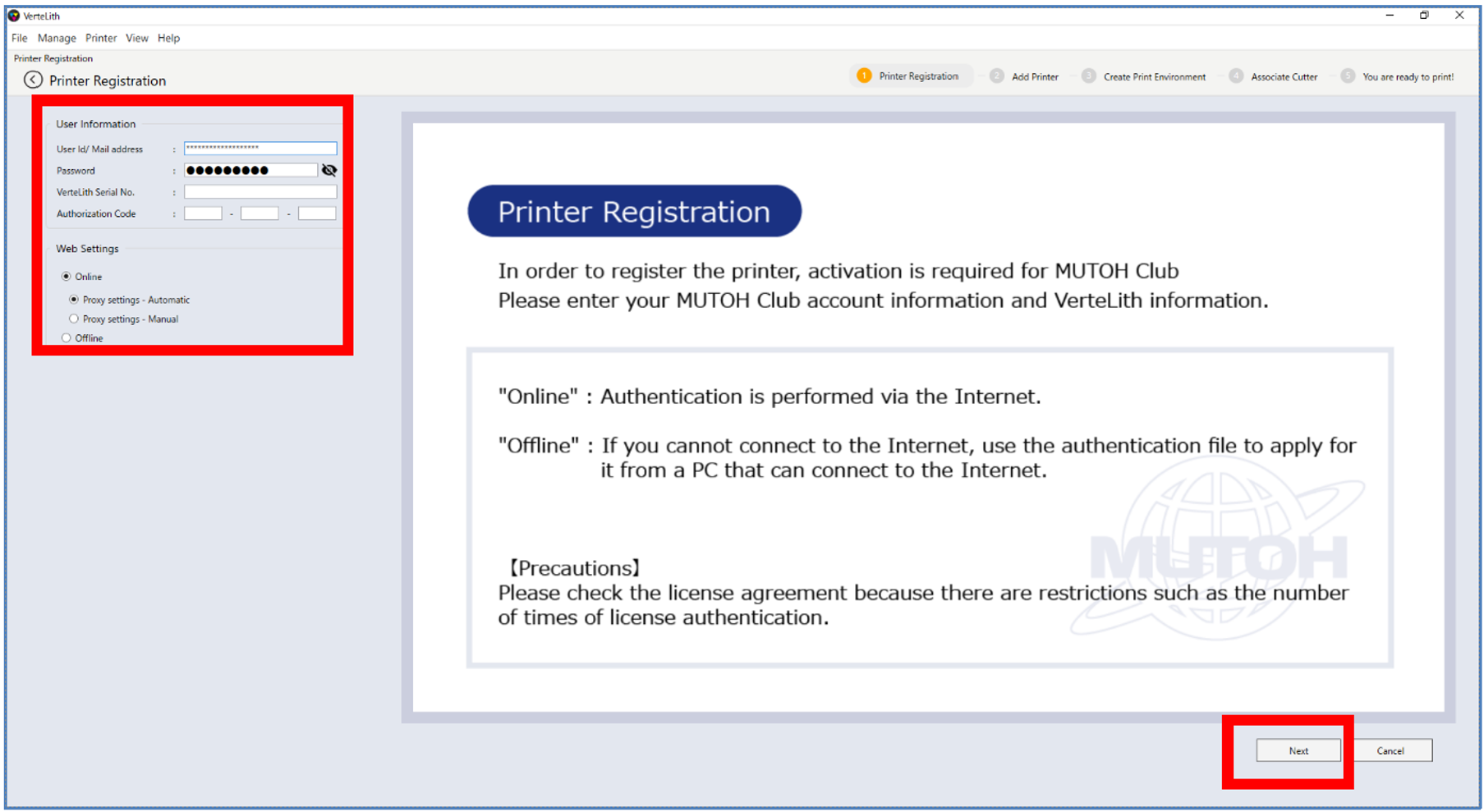
- Execute the rest of the steps to complete the printer registration
- Congratulations, you have finished the installation and registration of your VerteLith Dealer & Maintenance copy.
Troubleshooting the "Startup Error"
There are 3 possible scenarios:
1. If your MSA is expired:
Download and install the latest version of MSA and do the authentication again.
2. If a printer registered on VerteLith Ver2.1.1 or earlier exists:
Use VerteLith Initialization Tool to initialize the printer registration.
Note: Be careful: Initialization will delete all the printers registered in VerteLith.
3. If the following error dialog appears:
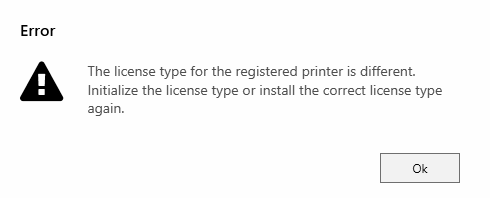
Check if you have downloaded VerteLith for D&M License.
If the correct one has been downloaded, follow these steps to initialize VerteLith:
1.VerteLith Initialization Tool
This tool deletes all the settings saved in VerteLith.
File location for VerteLith Initialization Tool (VerteLith Ver2 .1.1 or later:
C:\Program Files\Mutoh\VerteLith\VerteLithInitialization.exe
(VerteLith Initialization Tool is available in English only.)
2. Initialization procedure
step 1
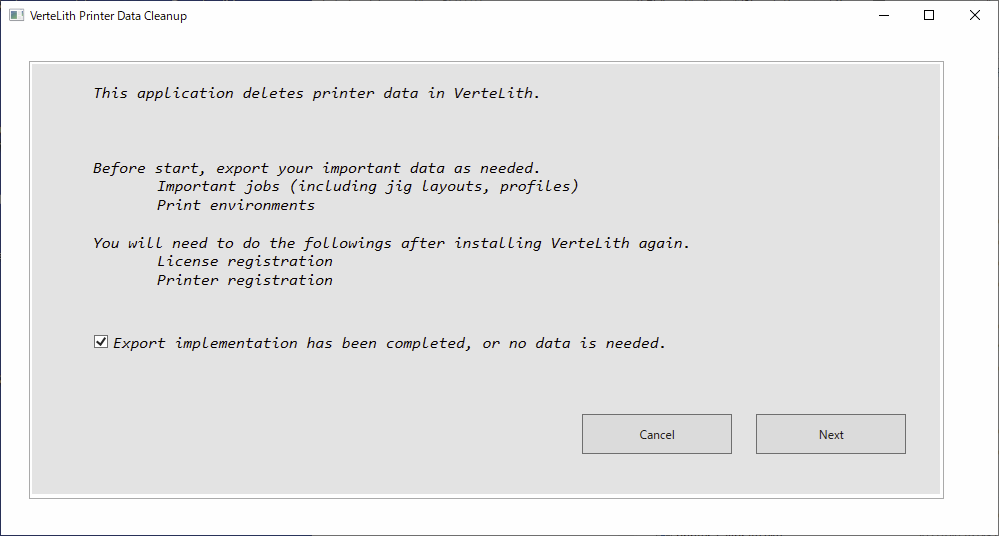
step 2
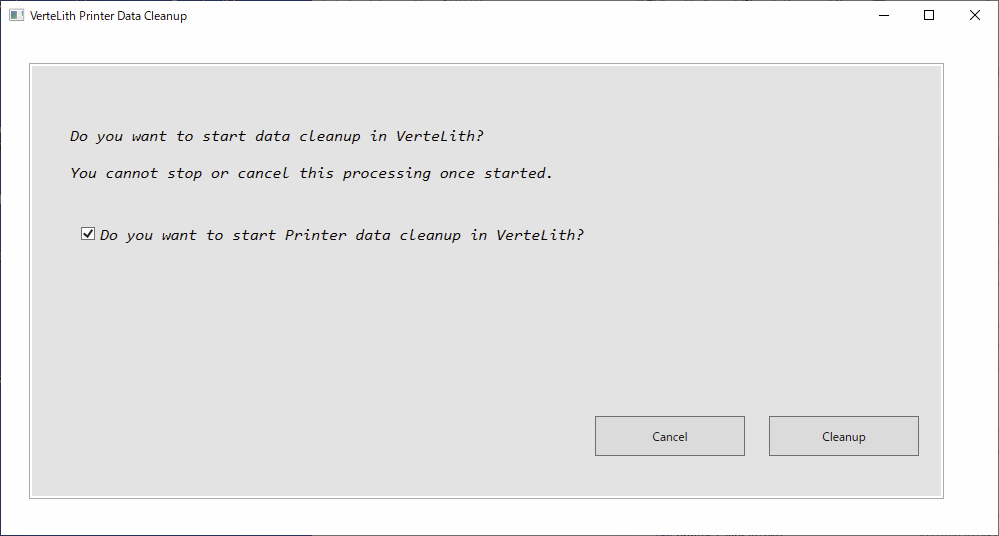
Was this article helpful?
That’s Great!
Thank you for your feedback
Sorry! We couldn't be helpful
Thank you for your feedback
Feedback sent
We appreciate your effort and will try to fix the article