When working with custom jigs that contain multiple slots, manually renaming and positioning each path (s(x), p(x), etc.) can become time-consuming and error-prone.
This script automates the process by performing a ‘step & repeat’ action to duplicate one slot across the jig while automatically renaming paths with the correct syntax.
Make sure to review the full guide on creating custom VerteLith jig layouts before using this script:
How to create custom jig layouts (SVG)
TABLE OF CONTENTS
Installation
- Copy the file Mutoh Jig Path Rename and Step Repeat.js to your Adobe Illustrator scripts folder.
- Windows: Program Files\Adobe\Adobe Illustrator <version>\Presets\<language>\Scripts
- macOS: /Applications/Adobe Illustrator <version>/Presets/<language>/Scripts
Using the script
- Create one slot setup (slot s1 and print area p1).
- Before running the script, ensure you have created compound paths for the non-printable areas. Refer to How to create custom jig layouts (SVG) for details.
- The top object in the Layers panel must be the print area, followed by the slot area.

- Select all paths that belong to the first slot of the jig.
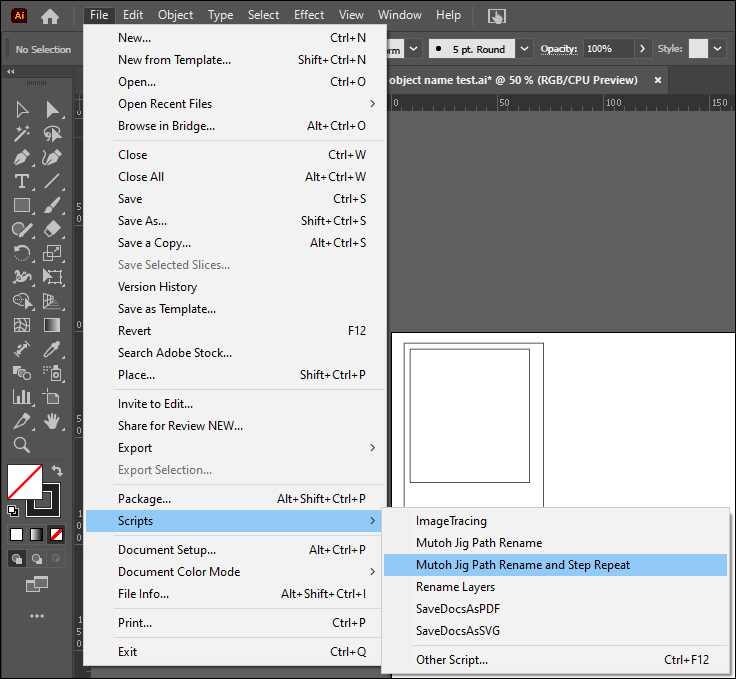
- Run the script from Illustrator’s menu: File > Scripts > Mutoh Jig Path Rename and Step Repeat.
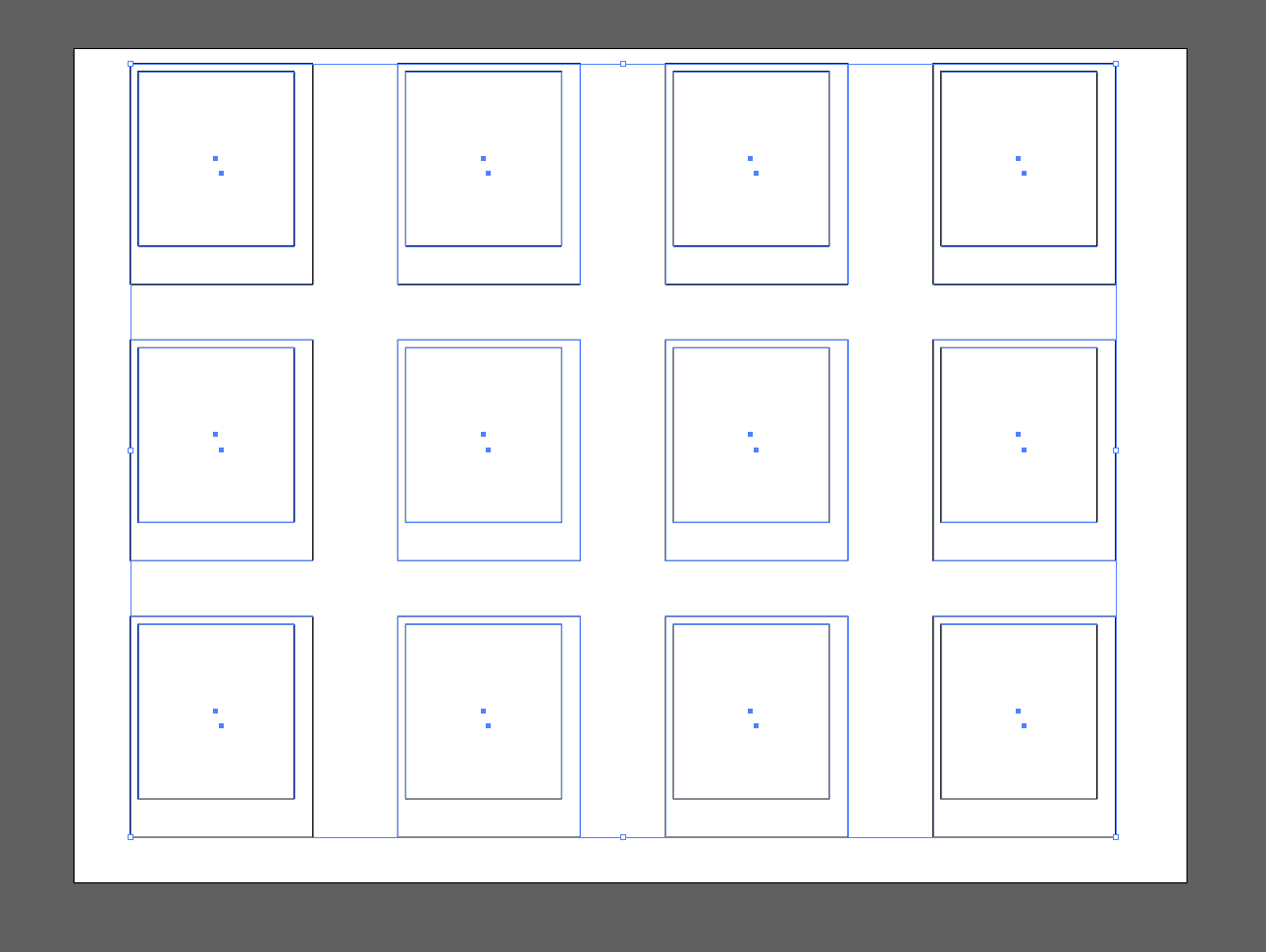
- If executed correctly, the jig will be filled with properly positioned and sequentially numbered slots. As long as the s(x) and p(x)paths remain grouped, you can freely reposition them if needed.
Was this article helpful?
That’s Great!
Thank you for your feedback
Sorry! We couldn't be helpful
Thank you for your feedback
Feedback sent
We appreciate your effort and will try to fix the article