The document describes all necessary steps to load MS51 inks into a new XpertJet 1641SR-Pro printer.
Please follow the procedure below in order to correctly install our MS51 inks.
Required items:
- Firmware V1.04 + MSA 5.1.1.0 (or higher)
- Cleaning & Ink:
- MS41 300 ml cleaning packs (MS41-CL300E)
XPJ-1641SR-P Part N° # MS41-CL300E 4
- MS51 ink for XpertJet-Pro
XPJ-1641SR-P Part N° # MS51-BK1000E 1 MS51-CY1000E 1 MS51-MA1000E 1 MS51-YE1000E 1
- Cleaning fluid to carry out the daily maintenance: VJ-ULVA1-ML500
Important The Start-up cleaning liquid (MS41-CL300E) is shipped with every new printer. |
Procedure:
- Boot the new printer in "Board Manager Mode" and update the firmware with the MSA 5.1.1.0 tool (or higher).
WARNING:
|
- Boot the printer in “User Mode” and enter the initial settings (language, IP address…).
- Activate the printer.
- Reboot the printer.
- Perform the “initial cleaning – initial ink charge”:
(please consult the Start-up guide for detailed instructions on how to load correctly the cleaning/ink in the ink packs):


- Unpack and insert the MS41 300ml Cleaning packs and MS41 cleaning smart cards
- Use the MS41 cleaner 300 ml smart chips to perform the wash cycle.
- The display will show: "Wash Retry?" -> Choose No

- Insert the MS51 ink packs in the ink cases, install them in the printer and insert the smart chips.
- The "Ink Charge" with the MS51 inks will be initiated.
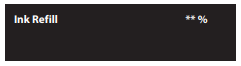
- Once the ink has been loaded, following message will appear (ink charging cycle is completed)

Was this article helpful?
That’s Great!
Thank you for your feedback
Sorry! We couldn't be helpful
Thank you for your feedback
Feedback sent
We appreciate your effort and will try to fix the article