Necessary tools
In order to be able to install firmware, the following tools are required:
- Personal computer with MS Windows
- Network cable to connect the XpertJet wit the pc
- The latest MSA-tool (Mutoh Service Assistance)
- Make sure the latest heater firmware is up-to-date and installed first, before installing the mainboard-firmware
Detailed instructions how to install the firmware, are described in the maintenance manual.
The latest current firmware can be downloaded below this article.
Release date: 21 November 2025
version - 1.08
** Make sure when updating to F/W Main Ver1.08 or higher to use MSA tool Ver.6.0.6 higher.
Bug fix:
- After updating to V1.07, the power off menu in Menu27 is not displayed.
- When switching to sleep mode, the system error "E092Err CR Over Load" occurs.
- When set to 8 color configration, "Front Interlace" should not be displayed, but it was displayed incorrectly.
Installed Ver 1.08 Serial number: XPJ-1682SR-P : KK6U001423~/ KK6U301155
Release date: 04 November 2025
version - 1.07
** Make sure when updating to F/W Main Ver1.07 or higher to use MSA tool Ver.6.0.6 higher.
Bug fix:
- Backup parameters may not be saved to non-volatile memory after ink charge.
- When printing data created with Fiery's RIP, missing dots and misaligned printing of specific colors occur.
- After sending data from VerteLith, even if the data is canceled from the panel, the panel does not return from the "Canceling" message.
- When printing from VerteLith, if an error that prevents printing, such as "Cover Open," occurs immediately after receiving data (panel is "Print Ready") or while receiving data (panel is "Receiving"), printing will not start even after the error is resolved, and the panel will remain in "Receiving".
- When performing continuous printing with VerteLith with media cut enabled, printing stops midway after printing a few sheets, or printing does not start.
- If a heater temperature different from the panel setting is printed using VerteLith, when the Home key is tapped to check the temperature status and various heater temperatures, the temperature set on the panel is displayed, and the temperature specified in VerteLith may not be reflected.
Changes:
- The system will be changed to keep the power on so that the power does not turn off for long periods of time.
The power button will switch the device to sleep mode and return it to sleep mode, and power off will be done from the Settings > Power Off menu. See TIB 877. - If no printing operation is performed for the set time, the printer will automatically enter sleep mode.
In the Sleep Mode menu, select "Auto Sleep Timer" to set the time until the printer enters sleep mode from 4, 8, 12, or 24 hours. (Default: 4 hours) - Auto-cleaning mode reduces ink consumption. "Spitting" has been added to the cleaning types in the Auto-Cleaning > Standby menu.
- The default values for "auto cleaning" and "cleaning during sleep mode" will be changed.
- Autocleaning (Standby) ==> CL Type : Spitting -> Spitting (Even if it was set to something other than Spitting before the update, it will be changed to Spitting after the update.)
Waiting Time : 360min (MS31), 120min (MS51) - Sleep Mode ==> CL type : Spitting -> Short CL
Cleaning Timer : 3H -> 7days (MS31), 3days (MS51)
- Autocleaning (Standby) ==> CL Type : Spitting -> Spitting (Even if it was set to something other than Spitting before the update, it will be changed to Spitting after the update.)
- The behavior after waking up from sleep mode will change (MS51only):
When waking up from sleep mode, if more than 120 minutes have passed since the most recent cleaning, cleaning will be performed.
The cleaning type performed will be the cleaning type set in sleep mode. However, if spitting is set, short cleaning will be performed. - If auto cleaning cannot be performed due to the cover being open or some other error, the print head nozzles may become clogged.
To prevent a long period of time from passing without being able to perform maintenance operations such as auto cleaning, the printer will display an error message and beep to notify the user. - If the power was left on for 24 hours, backup parameters, including the "Printer Usage" log, were sometimes not recorded in memory. Backup parameters are now recorded in memory on a 24-hour cycle.
- Using the printer in a temperature environment outside the guaranteed operating range may cause mechanical problems or physical problems (the ink may change quality or not curing).
To prevent and suppress such problems, a warning will be displayed on the main panel and on VerteLith and MSM if the printer temperature (temperature information for head 1) falls below 18C or exceeds 50C. If the printer temperature falls within the guaranteed operating range, these warnings will automatically disappear.
Release date: 12 December 2024
version - 1.06
Bug fixes:
- Sometimes cleanings cannot be performed from the remote panel.
- When the origin setting is complete, the "Cover open" message disappears. The message now continues to be displayed.
- The backlight of the control panel keys may flicker momentarily while the setting screen is displayed.
- The cleaning log can be recorded separately for "head 1" and "head 2", but when cleaning is performed for only head 1 or only head 2, it is counted for both heads.
- The backlight of the control panel keys may flickers momentarily while the setting screen is displayed.
"[**] Check color" is the same as error. Therefore, it has been changed to light up a red status LED. - Ink-related warning messages are not displayed correctly in Western European language settings.
- If the display language setting is changed while a warning message is displayed on the main panel, unintended characters may be mixed in with the warning message immediately after the change.
- When "Setup4: Media Initial" is set to "Off", the "Roll Length Manage4: Roll Length" menu cannot be accessed.
- When an ink-related error occurs, the "soak cleaning" process starts, and the panel becomes inoperable during the process.
Changes:
- Added: "Longstore" and "Ink Discharge" logs are now recorded.
The logs can be checked in self-diagnosis mode and with MSA 6.0.5(Not yet released) or later.
-User mode:
Ink charge:"UC" on the panel, "Ink charge (User mode)" on the MSA Log list
Longstore:"UW" on the panel, "Longstore (User mode)" on the MSA Log list
- Self-diagnosis mode
Ink charge:"CH" on the panel, "Ink charge (Diagnosis)" on the MSA Log list
Longstore:"LO" on the panel, "Longstore (Diagnosis)" on the MSA Log list - When there were multiple substatuses, the panel only showed the one with the highest priority.
Now all substatuses are displayed in turn to show everything. - Users may mistake "Longstore" for a stronger version of cleaning and perform "Longstore" in user mode. The printer will be left in an unfilled state and will be difficult to recover from.
- Before "Longstore" is performed, a message will be displayed on the panel indicating that a cleaning cartridge is required.
- Before "Longstore" is performed, make it possible to exit the menu by pressing the Cancel key. - Change the status display on MSM during soak cleaning from "Cleaning" to "Soak cleaning".
- If the power switch is pressed during soak cleaning, the process will be canceled and the power will be turned off.
Installed Ver 1.06 Serial number:
XPJ-1682SR-P : KK6U001312~ / KK6U301068~
Release date: 14 August 2024
version - 1.05
Bug fixes:
1. There was a problem with the "head soak" cleaning cycle that was added in the previous version.
- When performing the soak cleaning process while a media error (e.g. no media) is displayed, the carriage moves to the left and then immediately returns to the cap-in position.
- When pressing Enter with the cleaning solution filled into the cap, the soak time is entered after cap-in, but the process of sucking up the cleaning solution occurs when the cap is in. This means that the cleaning solution inside the cap is drained and the print head is not soaked.
- When entering the soak time, if the set time is not confirmed, the process does not move to the next step. At this time the cap is in a soaking state, but because the soaking time is not being counted, it is not recorded in the log.
2. When replacing heads via the menu "Self-Diagnosis>Head Replace", the head shot count was not cleared correctly as follows:
- When replacing head 1: The count for the A-D nozzle line of head 1 was cleared, but the E-H nozzle line counts of head 1 was not cleared.
- When replacing head 2: The count for the E-H nozzle line of head 1 is cleared, but the A-D nozzle line counts of head 1 was not cleared.
- When replacing both heads 1 and 2: The count for the A-H nozzle line of head 1 is cleared, but the A-H nozzle line counts of head 2 was not cleared.
Installed Ver 1.05 Serial number:
XPJ-1682SR-P : KK6U001196~ / KK6U301059~
Release date: 04 June 2024
version - 1.04
Changes:
1. Added the message that the media cannot be cut when media detection setting is "OFF".
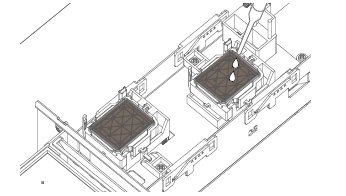
2. Added a "head soak" procedure in user mode (Menu 12: Soak clenaing)
This procedure can be used to soak the head in the cap when nozzles remain misfiring or missed.
3. Using certain antivirus software packages sometimes caused a CPU error: this is is now fixed.
4. When the printer is in "ingnore" setting the MW1 8 colour settings can be selected in ==> Self-diagnosis mode>Parameter>Update>Color>8color.
5. Changed the cleaning parameters when using the MW1 setting.
Bugfixes:
1. When printing in Self-diagnosis mode>Print>Parameter ALL, the UniD value was printed incorrectly.
It is now fixed.
Installed Ver 1.04 Serial number:
XPJ-1682SR-P : KK6U001122~ / KK6U301040~
Release date: 29 August 2023
version - 1.03
** Make sure updating F/W Main Ver1.03 higher that require using MSA tool Ver.6.0.0 higher.
Changes:
- The adjustment accuracy of PF Adjust>Auto was not high.
Improved the adjustment accuracy by changing the method of printing the pattern for adjustment. - Acceleration of paper feed during printing can be changed
This is a useful feature if slippery media is used.
New setting (Self-diagnosis mode>Parameter>Update>PF Acc.)
"Normal":Default
"Low": Low acceleration
*Note the impact on throughput. - Added the type of pump used in Parameter>Update during self-diagnostic mode, as the ink pump has changed.
TypeA (pump after change: DG-43402)
TypeB (previous pump: DH-40598)
If the pump is changed, switch the pump type in self-diagnostic mode.
Bugfixes:
- When data is received under the following conditions, even if data reception is completed, "Converting" may be displayed on the panel and printing may not be completed.
- i-ScreenFine(X) is used
- Data has about 17mm to 33mm blank data at the end
- MPS not used
It is now fixed. - Correct the correct print area for machines where the print area record was not calculated correctly. (Additional fixes from Ver1.02)
The target is KK6U000001 to KK6U000116. - The vacuum fan continued to work in standby mode.
In power saving mode, fixed to stop suction fan when standby heat times out
Installed Ver 1.03 Serial number:
XPJ-1682SR-P : KK6U001000~ / KK6U301000~
Release date: 02 February 2023
version - 1.02
** Make sure updating F/W Main Ver1.02 higher that require using MSA tool Ver.5.1.2 or higher.
Bugfixes:
- The print area calculation was incorrect. It occurs under the following conditions:
- 600x1200, 450x900, 300x600 print modes.
- The length information (ESC)*r#t|T. is not added to the print data.
- Printing via Port9100 - Correct the correct print area for machines that have incorrectly calculated print area records.
The target is KK6U000001 to KK6U000116. By uploading this 1.02 FW the area will be corrected to the actual value. - Self diagnosis mode>Parameter>Update16: Bi-D 460cps VSD2 adjustment pattern is not printed correctly when TypeB is selected in Uni/Bi Ptn.
- Depending on the connected PC, the carriage may hesitate at the left and right edges during printing.
Fixed network communication handling. - Head replacement history is not displayed correctly.
When replacing two heads at the same time, the replacement history was not saved in the correct order. - Sometimes the CR speed is slow (around 240 cps), or sometimes abnormal print occurs.
PM commands were not being processed correctly. This is now fixed. - Color setting was not possible when performing initial cleaning with smart/C setting. Fixed so that the color selection "4Color/8Color" can be selected only when the color setting is "Auto".
Changes:
- In Self-diagnosis mode>Adjustment>Uni-D/Bi-D adjustment, the dot size can be changed for each head height, CR speed, and discharge waveform.
- In order to prevent damage to the cap slider, when the cover is opened with the carriage capped out during CR maintenance, etc., an operation to slightly push the cap is added when the cap is in.
- An error may occur in the skew check after media cutting. Increased feed amount after media cut.
The Firmware file can be found as an attachment in the bottom of this article.
Release date: 28 November 2022
version - 1.01 (first release version)
Updating to F/W Ver1.04 requires MSA tool Ver.5.1.1 or higher.
1. New print effects specific to the XPJ-1682SR-P:
- "i-ScreenFineX" (faster) & "i-ScreenFine" (more banding suppression).
- To ensure that the new print effects can be selected, please make sure the customer is working with the latest version of VerteLith: V5.1.0 or later.
- Adapted drivers for 3rd party RIP software (Caldera, Onyx, SAi …) will also become available very soon: December 2022.
2. Profiling guidelines:
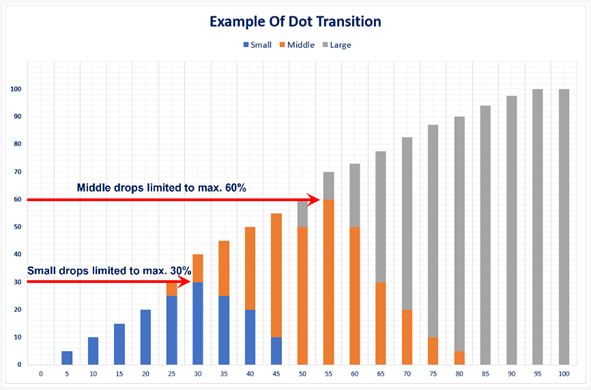
To obtain best results, Mutoh also wants to promote specific dot distribution/transition settings for variable drop profiling.
These settings control the balance among small, medium and large drops for a certain target output density.
- Small drop limit: max. 30%.
- Middle drop limit: max. 60%.
- Large drop limit: max. 100%.
The impact of this setting is illustrated in the graph below.
In VerteLith V5.1.0 using the latest Profiler version (V2.4.0), the screen to adjust the variable dot limits is shown in the illustration below:
|
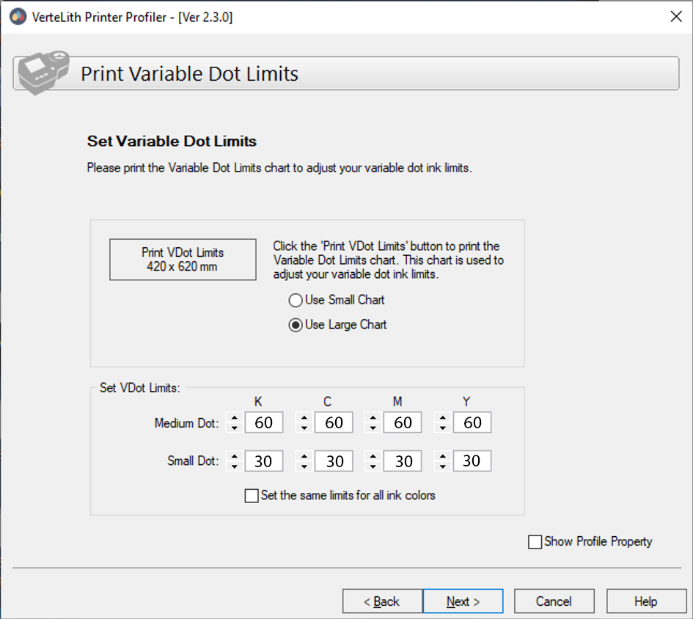
- Where possible, the recommended starting values are pre-filled.
- For cases where Mutoh recommends to eliminate a specific drop size (high-speed modes), a value of ‘2’ is prefilled.
To completely eliminate a drop size, it needs to be manually set to ‘0’ (zero).
3. Overview table print modes recommended by Mutoh:
Production Modes | |||||||
Print Mode | Resolution | Wave Form | Effect | CR speed | Print Direction | Speed | Dot Distribution Guideline |
HighSpeed | 600 x 1200 | VSD2 | i-Screen Fine 2 | 460cps | Bi-d | 22,93 m²/h | S-dots ( 30 %) & L-dots (100%) only – No Middle dots (*) |
Production | VSD3 | i-Screen Fine 2 | 360cps | Bi-d | 18,76 m²/h | S-Dots (max. 30%).M-Dots (max. 60%).L-Dots (max. 100%) | |
Quality | 1200 x 1200 | VSD3 | i-Screen FineX 2 | 360cps | Bi-d | 13,00 m²/h | S-Dots (max. 30%).M-Dots (max. 60%).L-Dots (max. 100%) |
HighQuality | VSD3 | i-Screen Fine 2 | 360cps | Bi-d | 9,70 m²/h | S-Dots (max. 30%).M-Dots (max. 60%).L-Dots (max. 100%) | |
High-Speed Modes | |||||||
Print Mode | Resolution | Wave Form | Effect | CR speed | Print Direction | Speed | Dot Distribution Guideline |
HighSpeed | 600 x 600 | VSD1-Variable | i-Screen Fine 2 | 360cps | Bi-d | 35,53 m²/h | M-dots ( 100 %) & L-dots ( 100 %) only – No small dots (*) |
Quality | 600 x 1200 | VSD2-Variable | i-Screen FineX 2 | 460cps | Bi-d | 30,40 m²/h | S-dots ( 30 %) & L-dots (100%) only – No Middle dots (*) |
(*) In the profiler, please set the pre-filled value to ‘0’ – Zero. | |||||||
To ensure correct adjustments with FW v1.01 it is advised to change the below setting when performing the Uni/Bi-Dir adjustments for VSD1:
In Self-diagnosis mode: >Diagnostics>Parameter>3.Update>17.Uni/Bi Dot>"360 VSD1" → Change parameter from Large to Middle
This also valid for 320 VSD1.
In FW version 1.02 this setting will be selected by default.
5. Usage condition MS51:
- Customers who have used an XPJ-1682SR-P with MS51 using F/W before V1.01 may observe dried ink onto the nozzle surface like shown on the image below.
|
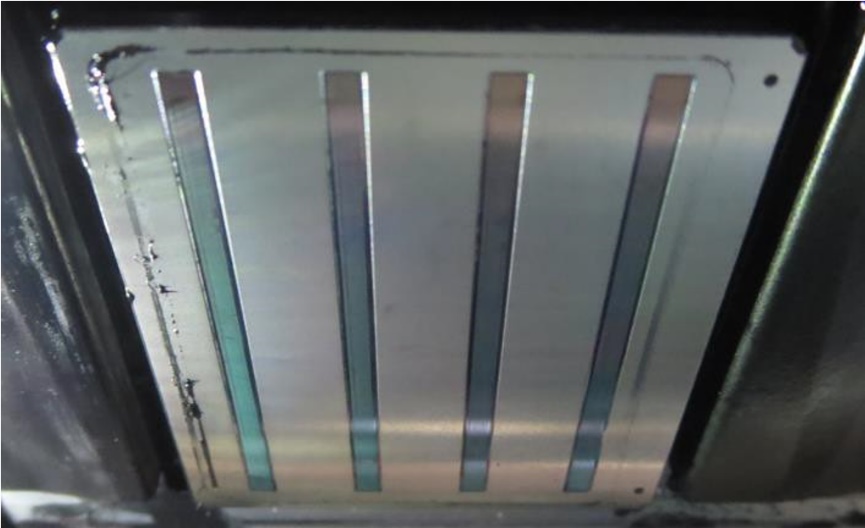
- When starting to use F/W V1.01, the operator will need to carefully remove the dried ink using a swab moistened with ULVA maintenance cleaner. Part number: VJ-ULVA1-ML500.
- For the XPJ-1682SR-P it is important to keep the factory default automated cleaning ON. The recommended frequency is 120 minutes.
- This setting can be found in User mode under menu: Setup > AutoCleaning >Standby mode > Cleaning Interval
- FW V1.01 will automatically activate an automated cleaning every 120 minutes.
This cleaning will avoid the build-up of dried ink on the nozzle plate like shown in the picture above. - Printing of long jobs will not be interrupted to perform cleaning.
If a print job lasts longer than 2 hours, the cleaning will be executed after the print job is finished. - If nozzle clogging occurs even after cleaning, perform manual maintenance.
- After the daily production the printer can be switched off normally without special attention.
- Under these usage conditions, the printer’s manual maintenance can be limited to 1x per week.
Important:
|
6. Bugfixes:
- When printing with Self diagnosis>adjustment>Send Pitch, only half of the original media feed amount was sent.
This is now fixed. - When 8 colors are set and 1 plane data is sent, the image is not printed correctly: This is now fixed.
- The cleaning liquid consumption (smart chip) is undercounted when "Longstore" is executed: This is now fixed.
- When printing with MPS, some data on the opposite origin side may not be printed: This is now fixed.
- When the *IP4 command is output in bi-directional printing in 600x900dpi mode, the image is shifted and appears double: This is now fixed.
- When checking the smart chip information on the remote panel, the color information and remaining amount of each smart chip are not displayed correctly: This is now fixed.
- When executing "Test Print > Head Alignment > Auto > Pattern E or ALL", pattern E is not printed correctly: This is now fixed.
- When using 8 colors, the "Palette" menu was displayed in the test menu.
Since the palette pattern does not support 8 colors, it has been modified so that the "Palette" menu will not be displayed when using 8 colors.
7. Other changes:
- "Automatic print settings" has been added to the remaining roll paper management menu in order to streamline operations up to barcode printing for remaining roll paper management.
If "Auto Print Settings" is set to ON, "Do you want to print the remaining amount?" is displayed after cutting the media.
If "Yes" is selected, the barcode is printed after media cutting. - The paper feed operation during PF adjustment has been changed from a one-time feed method to a six-pass equivalent feeding method to match the actual printing conditions.
- Changing the head slant adjustment pattern in Self-diagnosis->Adjustment.
An auxiliary pattern has been added to check the tilt of each nozzle line. The added pattern is secondary and does not change the adjustment method. - Change the print mode conditions as follows.
- High Quality : No change
- Quality : Waveform changed
- Production : Waveform changed
- High Speed : Waveform and Effect changed - Changed all effect patterns.
- If left in the cached state during CR maintenance, the head will fail.
In the cover closed state, it automatically returns to the capped after 30 seconds.
When 10 minutes or more have passed with the cover open, the panel displays "Please close the cover" and sounds a buzzer. - Change the drop size used in various adjustment patterns.
- The drop size used in the nozzle check pattern has been changed to a smaller size than before.
Was this article helpful?
That’s Great!
Thank you for your feedback
Sorry! We couldn't be helpful
Thank you for your feedback
Feedback sent
We appreciate your effort and will try to fix the article