1. In case your cutting output dimensions do not really correspond with the software design dimensions specified, a verification of the [IMAGE SCALE LENGTH] and [IMAGE SCALE WIDTH] parameters need to be done. Both parameters can be found, and re-entered in the [MISC] menu.
What to do? How can one verify the current machine parameters?
Step1: to verify your current parameters, we suggest to plot a rectangle of 500x500mm, and practically measure your output dimensions. If these values do not correspond with your theoretical values, incorrect machine values are currently present.
X direction = Image Scale Length
Y direction = Image Scale Width
Step2: To adapt these machine values, make sure to select your Numerator correctly (500mm).
The procedure is a follows:
1. Press the [MISC] button, and enter the [IMAGE SCALE WIDTH] or [Image SCALE LENGTH] menu
2. Now press the [LEFT ARROW] key to select the Numerator, and choose 500.0 mm (UP/DOWN ARROW keys)
3. Use the [RIGHT ARROW] key to select the Denominator
4. Press the [UP/DOWN ARROW] keys to change the values into the practical measured values
Once you have completed this task, one should repeat above rectangle test until both theoretical and practical dimensions correspond with each other.
2. In case a contour positioning shift is valid, a re-calibration of the AAS offset values need to be executed.
How to verify the AAS X Offset, AAS Y Offset value?
Step 1: Print a small contour rectangle with the reference marks around it.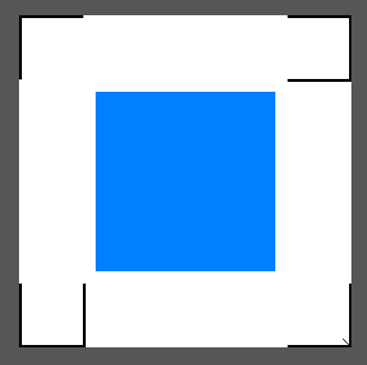
Step 2: Start the contour cutting task, and verify the contour positioning of the plot window.
Depending on the position of that plot window, adapt the AAS X, Y values on panel.
AAS Offset setup steps
Step : 1 Press the [MICS] key by “OFF LINE” mode to enter the Setup Menu, then select [AAS Offset] and input each X, Y value.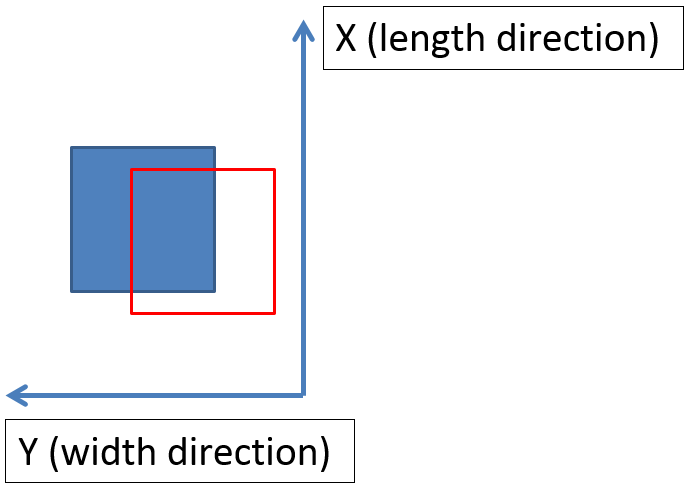
The red window is your plot window. As you can see, we have to recalibrate our window in the X and Y direction.
Example X: + 0.5mm, Y: +1mm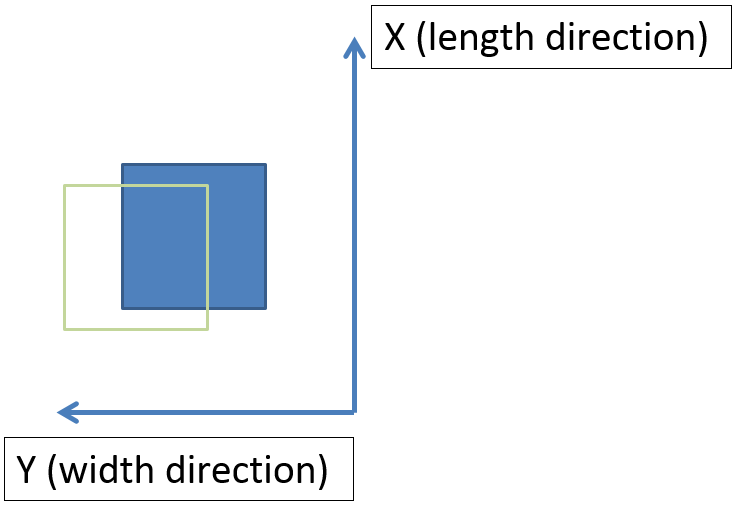
The green window is your plot window. As you can see, we have to recalibrate our window in the X and Y direction.
Example X: + 0.5mm, Y: -1mm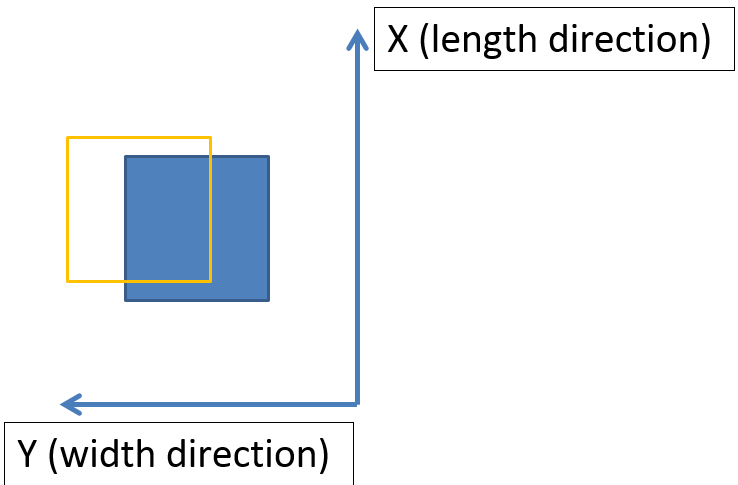
The orange window is your plot window. As you can see, we have to recalibrate our window in the X and Y direction.
Example X: - 0.5mm, Y: -1mm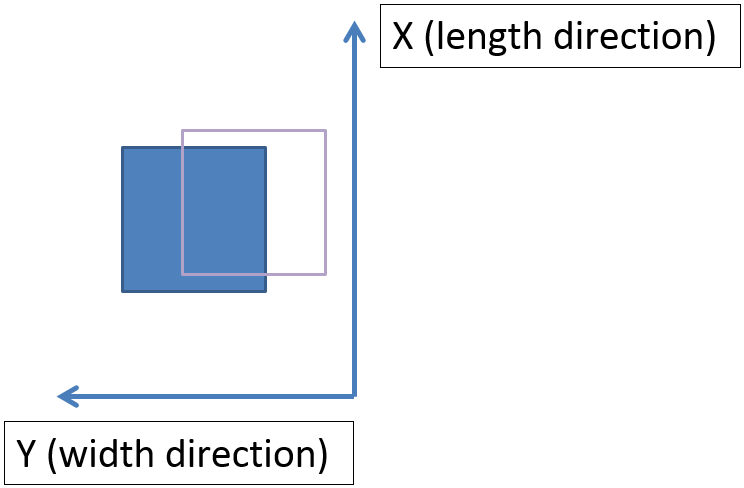
The pink window is your plot window. As you can see, we have to recalibrate our window in the X and Y direction.
Example X: - 0.5mm, Y: +1mm
Was this article helpful?
That’s Great!
Thank you for your feedback
Sorry! We couldn't be helpful
Thank you for your feedback
Feedback sent
We appreciate your effort and will try to fix the article