Necessary tools
In order to be able to install firmware, the following tools are required:
- Personal computer with MS Windows
- Network cable to connect the XpertJet with the pc
- The latest MSA-tool (Mutoh Service Assistance)
- Make sure the latest heater firmware is up-to-date and installed first, before installing the mainboard-firmware
Detailed instructions how to install the firmware, are described in the maintenance manual.
The latest current firmware can be downloaded below this article.
Current version v1.14
Changes:
- Users may mistake "Longstore" for a stronger version of cleaning and perform "Longstore" in user mode. The printer will be left in an unfilled state and will be difficult to recover from.
- Before "Longstore" is performed, a message will be displayed on the panel indicating that a cleaning cartridge is required.
- Before "Longstore" is performed, make it possible to exit the menu by pressing the Cancel key. - Change the status display on MSM during soak cleaning from "Cleaning" to "Soak cleaning".
- When the ink status "[**] Check color" message was displayed, the status LED on the panel was lit green.
Bugfixes:
- When an ink-related error occurs, the "soak cleaning" process starts, and the panel becomes inoperable during the process.
- The backlight of the control panel keys may flickers momentarily while the setting screen is displayed.
"[**] Check color" is the same as error. Therefore, it has been changed to light up a red status LED. - When the smart chip terminal short circuit occurs due to the misalignment of the smart chip card attachment position on the ink cartridge, the chip recovery may not function and an I/C error may occur.
Fixed chip recovery to work even in such cases. - Ink-related warning messages are not displayed correctly in Western European language settings.
- If the display language setting is changed while a warning message is displayed on the main panel, unintended characters may be mixed in with the warning message immediately after the change.
- When the origin setting is complete, the "Cover open" message disappears. The message now continues to be displayed.
Installed Ver 1.14 Serial number:
XPJ-1642WR JX6U000786~
Version history
1.13
Bugfix:
There was a problem with the "head soak" cleaning cycle that was added in the previous version.
- When performing the soak cleaning process while a media error (e.g. no media) is displayed, the carriage moves to the left and then immediately returns to the cap-in position.
- When pressing Enter with the cleaning solution filled into the cap, the soak time is entered after cap-in, but the process of sucking up the cleaning solution occurs when the cap is in. This means that the cleaning solution inside the cap is drained and the print head is not soaked.
- When entering the soak time, if the set time is not confirmed, the process does not move to the next step. At this time the cap is in a soaking state, but because the soaking time is not being counted, it is not recorded in the log.
Installed Ver 1.13 Serial number:
XPJ-1642WR JX6U000771~
1.12
** Make sure updating F/W Main Ver1.11 higher that require using MSA tool Ver.5.1.2.0 higher.**
Changes:
1. Added the message that the media cannot be cut when media detection setting is "OFF".
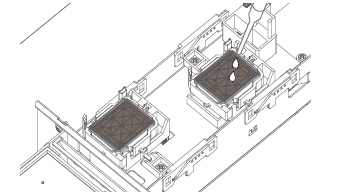
2. Added a "head soak" procedure in user mode (Menu 12: Soak clenaing)
This procedure can be used to soak the head in the cap when nozzles remain misfiring or missed.
3. Using certain antivirus software packages sometimes caused a CPU error: this is is now fixed.
4. When DS3 ink is being selected the CR maintenance log is active.
Installed Ver 1.08 Serial number:
XPJ-1641SR-P : KF6U001479~
Release date: 29 August 2023
1.11
** Make sure updating F/W Main Ver1.11 higher that require using MSA tool Ver.5.1.2.0 higher.
1/ Added patterns for head slant adjustment.
These patterns may improve the accuracy of head tilt adjustment and improve print quality.
New patterns (Self-diagnosis mode>Adjustment>Head Slant)
Slant V-1
Slant V-2
A high magnification loupe(x200~x400 e.g. Digital loupe) is required for adjust with these patterns.
2/ Acceleration of paper feed during printing can be changed
This is a useful feature if slippery media is used.
New setting (Self-diagnosis mode>Parameter>Update>PF Acc.)
"Normal":Default
"Low": Low acceleration
*Note the impact on throughput.
3/ Added new effects
i-Screen S1~S3 (*EF70~72;)
When single head printing is selected, i-Screen S1~S3 will be converted to i-Screen4~6.
Installed Ver 1.11 Serial number:
XPJ-1642WR : JX6U000590
Release date: 13 February 2023
1.10
Updating to F/W Ver1.04 requires MSA tool Ver.5.1.2 or higher.
1/ New sequence to avoid collision of the cursor into the capping station.
When the carriage returns to the home position it slows down when approaching the cap slider. The carriage makes soft contact with the cap slider just enough to release it in case it would be stuck in a too high position. After this initial contact the carriage is moved back slightly before moving to the final home position allowing a good capping in of the capping station.
2/ An error may occur in the skew check after media cutting. Increased feed amount after media cut.
Bugfixes:
1/ The print area calculation was incorrect under following conditions:
* 600x1200, 4510x900, 300x600 print modes
* The length information is not added to the print data
* Printing via Port 9100
2/ The drop sensor mistakenly detects that it is constantly being discharged: fixed
Installed Ver 1.05 Serial number:
XPJ-1642WR : JX6U000446
Release date: 06 2022
1.09
Important: To update to main FW ver1.09 or higher please make sure to use MSA tool 5.1.1 or higher.
BugFixes
- When the *IP4 command is output in bi-directional printing in 600x900dpi mode, the image is shifted and appears double: This is now fixed.
- The value of "380cps VSD3" is not saved when entering parameters in "Self-Diagnosis>Adjustment>UniD ALL>H_Adjust1>Setup" : This is now fixed.
Changes
- "Automatic print settings" has been added to the remaining roll paper management menu in order to streamline operations up to barcode printing for remaining roll paper management.
If "Auto Print Settings" is set to ON, "Do you want to print the remaining amount?" is displayed after cutting the media. If "Yes" is selected, the barcode is printed after media cutting.
- The head ID of the I1600 head has been changed so that values other than "0" are entered in the 1st and 38th digits due to the change in print head specifications.
It does not affect the waveform.
Installed Ver 1.09 Serial number:
XPJ-1642WR JX6U000351~
Release date: 03 August 2022
1.08
Important: To update to main FW ver1.07 or higher please make sure to use MSA tool 5.1.0.0 or higher.
BugFixes
- E076 preheater error occurs even though the printer does not have the preheater
Installed Ver 1.08 Serial number:
XPJ-1642WR JX6U000306~
Release date: 25 July 2022
1.07
Important: To update to main FW ver1.07 or higher please make sure to use MSA tool 5.1.0.0 or higher.
BugFixes
- While "Output" is set to "Take up" and "Page gap" is set to "Narrow", if "Output" is changed to other than "Take up", "Front interlace" will be executed when printing. It is now fixed so that "Front interlace" is not executed.
- During head washing, when the waste tank becomes full with no cartridges inserted, "No Cartridge" is displayed when the waste liquid is drained and released. The panel should display "Ink Discharge" or "Washing Head". It is now fixed.
- When "Output mode" is set to "Take-up" in User mode > Test Print > Nozzle Check, the media is fed backward after the nozzle check is printed. It is now fixed so that the media does not move.
- When the automatic UniBi adjustment function is used in Ver.1.06, the adjustment accuracy may be worse than before Ver.1.05 because only the nozzle row at the top of the head is used. The center of the nozzle row is now used.
- The name of the ink type displayed on the panel is changed from "XPJ-" to the ink product name, in the following menus.
- User Mode
System information > Ink Type
-Self Diagnosis Mode
Parameter > Update > Ink Type
Installed Ver 1.07 Serial number:
XPJ-1642WR JX6U000302~
Release date: 08 February 2022
1.06
New Ink Type:
Implemented support to accommodate water-based sublimation inks with higher viscosity.
When the printer is configured as “smart-chip ignore”, a new ink type has been added under self-diagnosis / Parameter / Update11 / InkType.
|
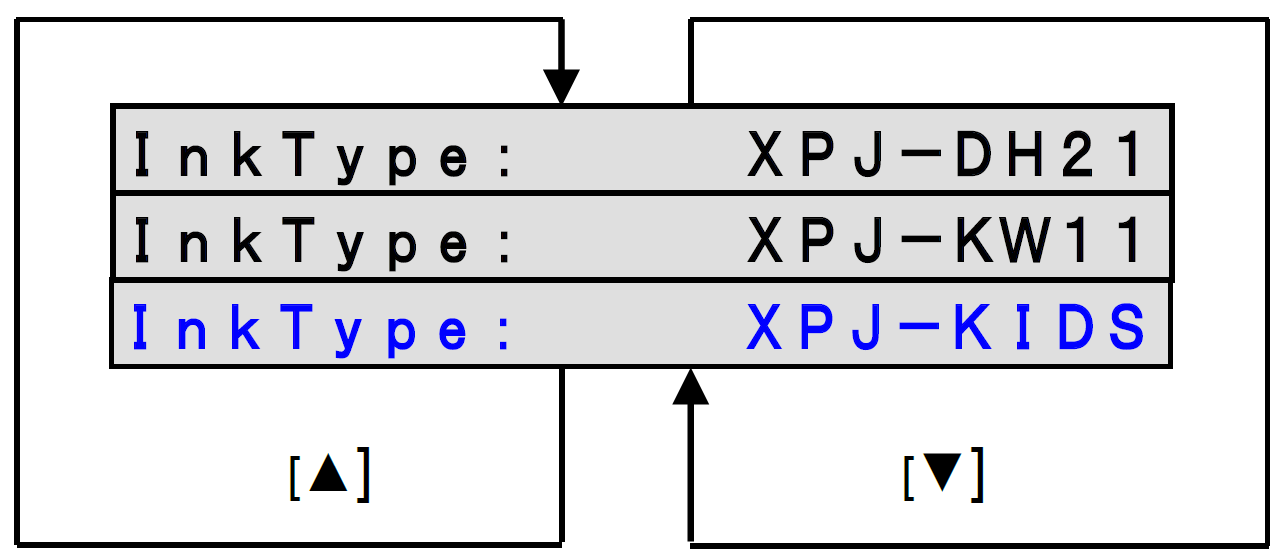
Ink type selection guidelines:
- The available ink type selection is directly related to the viscosity range/production tolerance of the target ink.
InkType Setting | Recommended Ink Viscosity Range |
XPJ-DH21 | 3,3 – 4,3 mPA.s |
XPJ-KIDS | 4,5 – 5,5 mPA.s |
XPJ-KW11 | Reserved for later use |
Viscosity measured using the type-E viscometer method at 25°C | |
- The ‘InkType’ setting also sets the ‘Spitting Type’: self-diagnosis – Update26: Spitting.
InkType Setting | Spitting Type |
XPJ-DH21 | Default Medium |
XPJ-DS3 | Default Medium |
XPJ-KIDS | Default High |
BugFixes
- The heater type could not be not changed by pressing the right arrow key while the warm-up is displayed when printing the adjustment pattern in self-diagnosis mode. There is no problem with the left arrow key. This has now been fixed.
- If the origin setting Y (CR) was set to the max value and the mode print was performed, then the print contents would exceed the media width and the trailing part of the printing image would not come on the media as a result.
It is now changed to print as two divided parts. - A small size of character "A" is printed in the upper left part of the print information when printing with the setting of Adjustment printing> Custom> Rough adjustment all on user mode. This has now been fixed.
- The wiper count information was not reset to zero when self-diagnosis> Parameter> Initialization > Parameter ALL is executed.
- Self-diagnosis> Parameters> Update> Uni-/Bi-dot settings are not saved at the correct saving areas for VSD2 and VSD3.
The VSD2 parameters are saved as VSD3 and VSD3 ones are saved as VSD4. It is now fixed to save the right areas. - Even when the alert buzzer is set to off, pressing a key is needed to stop the buzzer when the "ink near end" or "ink end" condition occurs. This has now been fixed.
- If the cancel key is pressed just before the printhead is capped in, all keys become invalid except the main switch.
It is now fixed.
Changes
- "Perform Adjust Print" was periodically displayed to promote users to make adjustments, but it was misunderstood as a malfunction.
It is now changed not to be displayed to prevent misunderstanding as a malfunction. - The time required for the "automatic UniBi adjustment function" of machines equipped with color sensors has been shortened.
-37% -56% reduction was achieved.
Installed Ver 1.06 Serial number:
XPJ-1642WR JX6U000201~
XPJ-1642WRK JX6C000218~
Important: To update to main FW Ver1.06 or higher make sure to use MSA tool Ver.5.0.9.0 higher.
Release date: 26 Octobre 2021
1.05
New
- "Flushing type" has been added to "Parameter > Update" in diagnostics. When you experience some mild cross color-contamination between channels after a cleaning, you can use this new feature to flush some additional ink to avoid this issue.
- I-Screen 4-6 has been added to the weave/effect.
BugFixes
- Issue with missing magenta dot-printing has been resolved.
- Corrected a printer freeze issue when multiple small prints are sent one after another to the printer, on the exact moment after doing an automatic nozzle check mentioning "Nozzle Clog Present"
- Corrected a printer freeze issue during the automatic nozzle-checkif the header dump and the "after nozzle check" are both enabled simultaneously.
- When the automatic nozzle check function is enabled and the ink drying time is set, the automatic nozzle check has priority. This has bee inversed: the ink drying has priority and the automatic nozzle check starts when the ink drying is finished.
- Corrected an issue where the warning "Nozzle Clog Present" on the Mutoh Status Monitor (MSM) is not disappearing from the display when the Enter key is pressed. This issue could occur when an automatic nozzle check was being made.
- Corrected an issue where when the "Drop Sensor Unit" detects a failure, the automatic nozzle check setting does not turn of automatically.
- The accumulated print area log was not updated when making a print with the size of 0.01sqm (or less). This has been fixed.
- Printer commands for the vacuum fan and media cut, were not properly processed when printing data with the MPS (Mutoh Print Server)
- Diagnostics: corrected a spelling error from "Rst" to "Rslt" when getting the result display for "Get Optical Axis"
- Corrected an issue where "Get Optical Axis" did not cap in when there was an ink-error.
- Corrected an issue when using the Mutoh Print Server: when it receives a printer command related to the printer heaters, a heater error (system error) could occur.
- Corrected an issue where the heater displays "Warming up" by mistake. This may occur when the heater temperature is set twice continuously to the same temperature during the standby-heat.
- Corrected an issue where the displayed head transistor thermistor of "Head 2" was swapped with "Head 1". So if an error occurs on head 2 it may result in a wrong technical diagnosis, thinking it's head 1 that causes the error.
- Corrected an issue when "Scan" of the "Roll Length manage" menu is executed: it may stop about 2cm before the detection marker causing the reader to fail.
- Corrected an issue where the "Alert Buzzer" setting could not be switched off while the ink-end buzzer is beeping
- Corrected an issue where effect/weave settings were not switched when the "user type" is changed to another.
- When activating a new printer there was an unnecessary character "_". This has been fixed.
Changes
- Implementation of a new feature to handle smart-chip related issues, with the new S/C Recovery procedure.
For more information check the following article: TIB818 - Smart Chip Recovery - The print position of the header dump, print mode and setup list can now be specified.
Installed Ver 1.05 Serial number:
XPJ-1642WR JX6U000147~
Release date: 04 Octobre 2021
1.04
Bugfixes
Release date: 22 june 2021
1.03
Fixes
- The result of auto nozzle check was not properly synced with the MSM tool in the following conditions:
- When the printer man switch is turned on
- When the auto nozzle check is cancelled
- The head was not capping when performing the unit check in diagnostics. This has been fixed.
- The auto nozzle check will no longer work when the paper gap is set to "High"
- A function to confirm if the auto nozzle-check is properly working or not, has been added into the diagnostic menu
- The measuring method of the pump life has been changed
- Fixed the printing position of the nozzle check pattern, it was not in the correct position
Diagnostics
- Description "13. HeadExchange" was incorrect.
It has been changed to: "13. HeadReplace"
Release date: n.a.
1.02
Initial release
Was this article helpful?
That’s Great!
Thank you for your feedback
Sorry! We couldn't be helpful
Thank you for your feedback
Feedback sent
We appreciate your effort and will try to fix the article